With a link Monocard.me, it has become much easier to make professional connections and attract potential clients through your social networks.
Here is a short tutorial on how to use your Monocard Bio Link.
Creating your Monocard.me link
Your Monocard.me link is created when you open your Monocard account.
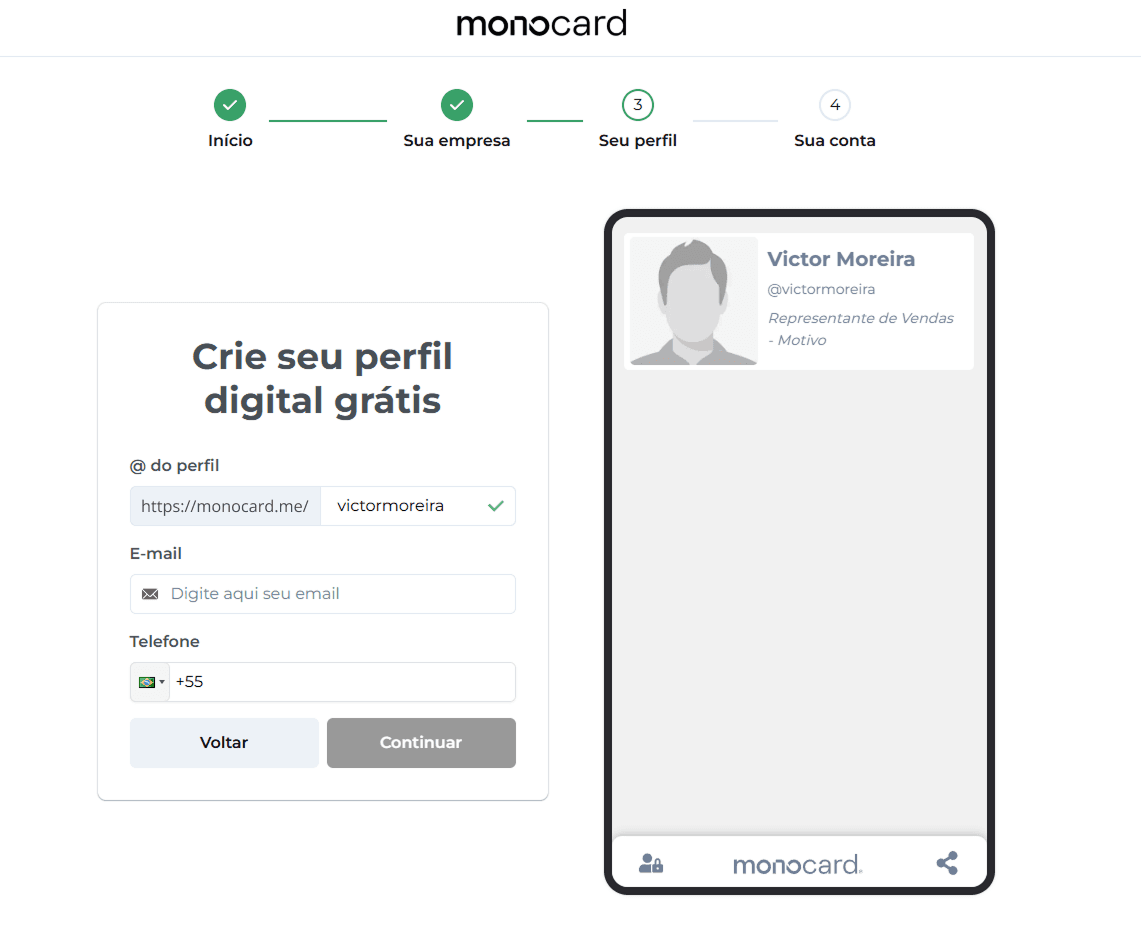 However, if you are not satisfied with your Monocard.me @, you can easily change it by following these instructions:
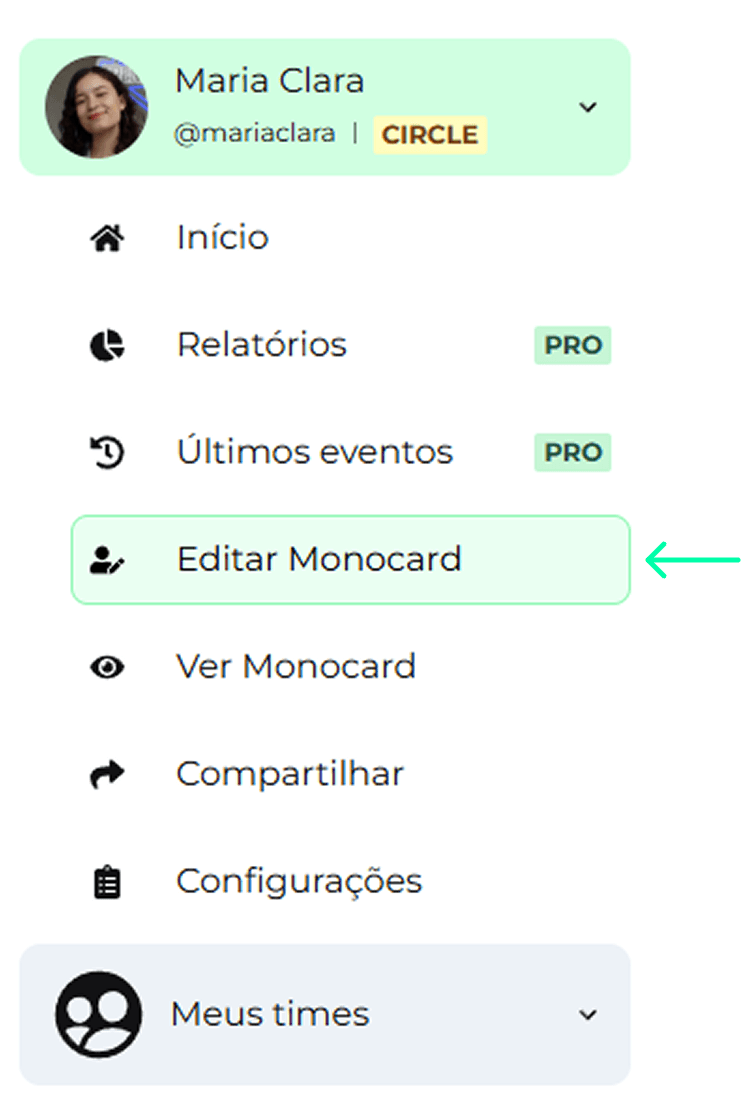
1. Log into your Monocard account and click on Edit Monocard.
2. Under Information, find Change profile @.
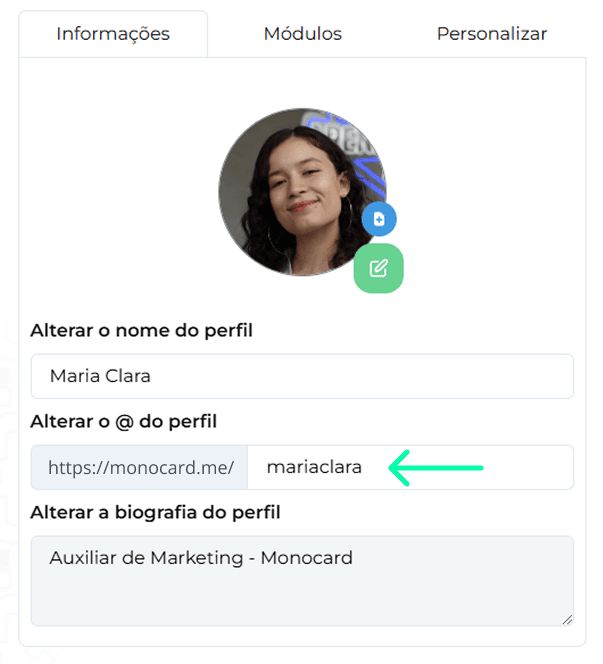
3. Change to your desired new @ and make sure it is available.

4. Click on Save Changes.
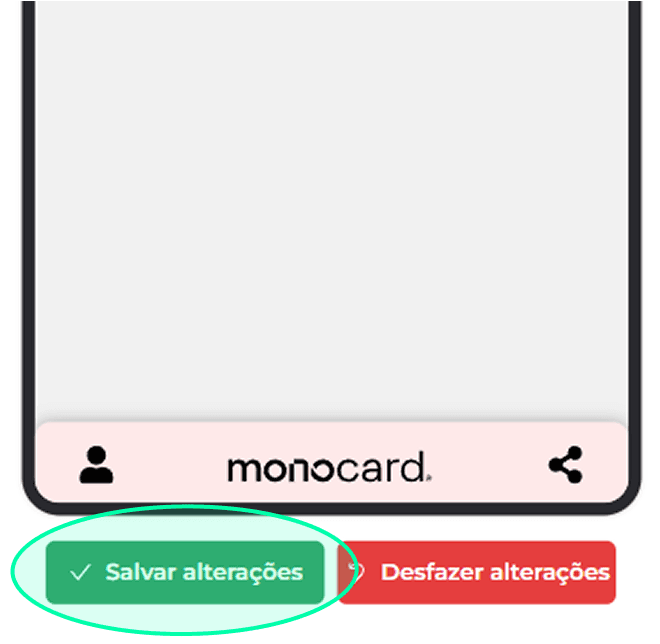 Done! Your Bio Link has been updated.
Sharing your Monocard.me link
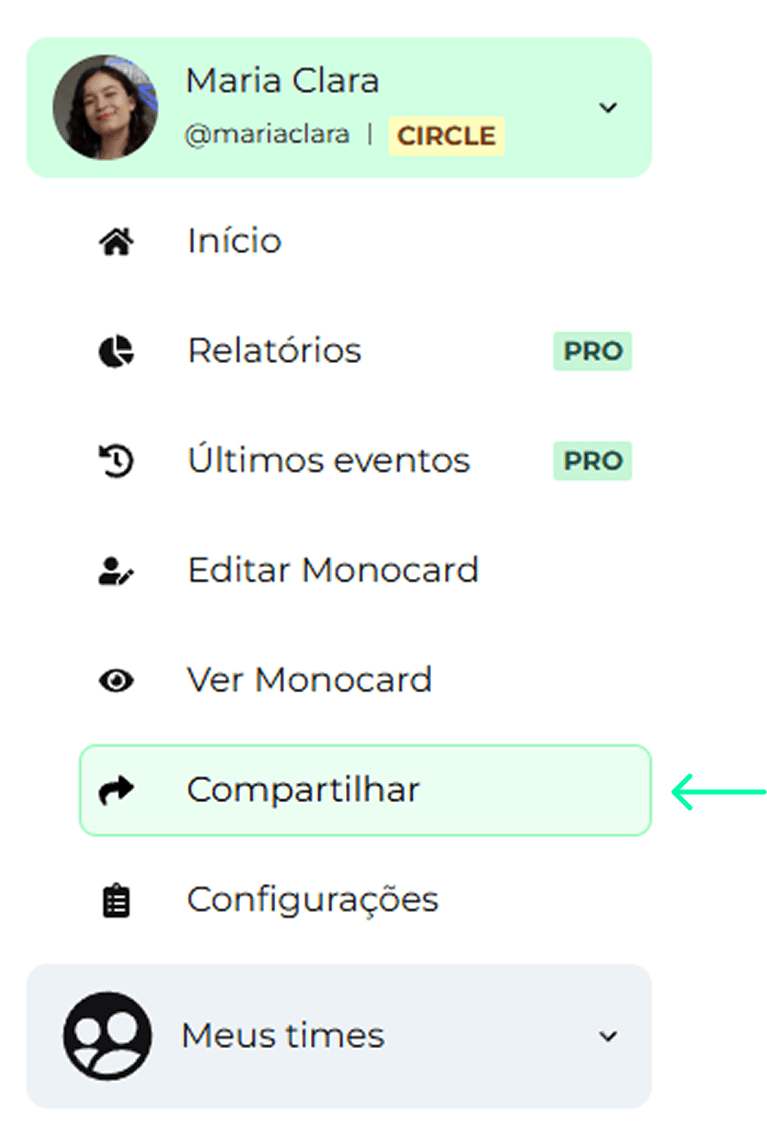
1. Back in your Sidebar Menu, click on Share.
2. Click on Bio Link.
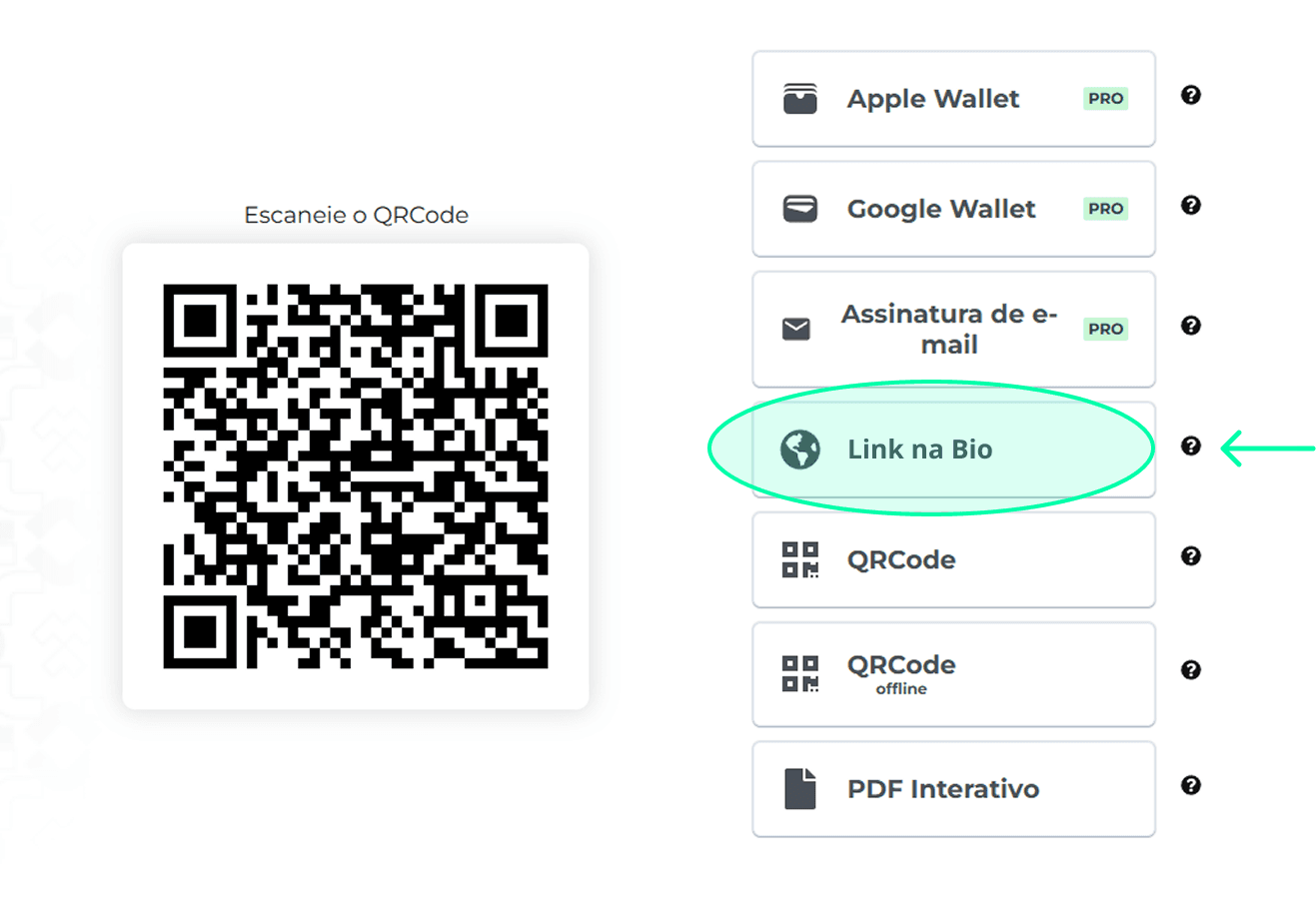 3. All set! Your Bio Link has been copied to the clipboard.

How to put a link in the LinkedIn bio
1. Open your profile on LinkedIn and click on the Edit pencil.
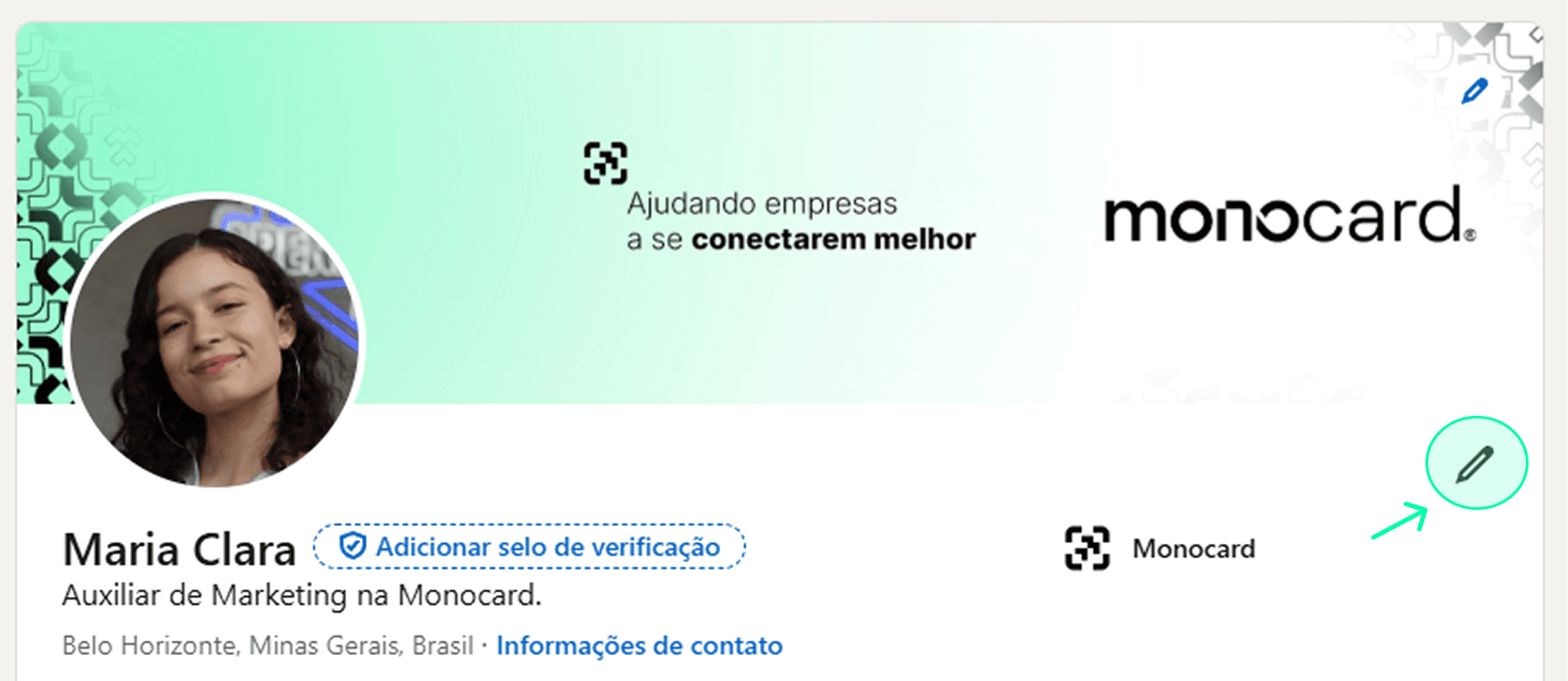
2. Scroll to the bottom of the page and find Website.

3. Paste your Monocard.me Bio Link and add a Title (optional). Then, click on Save.
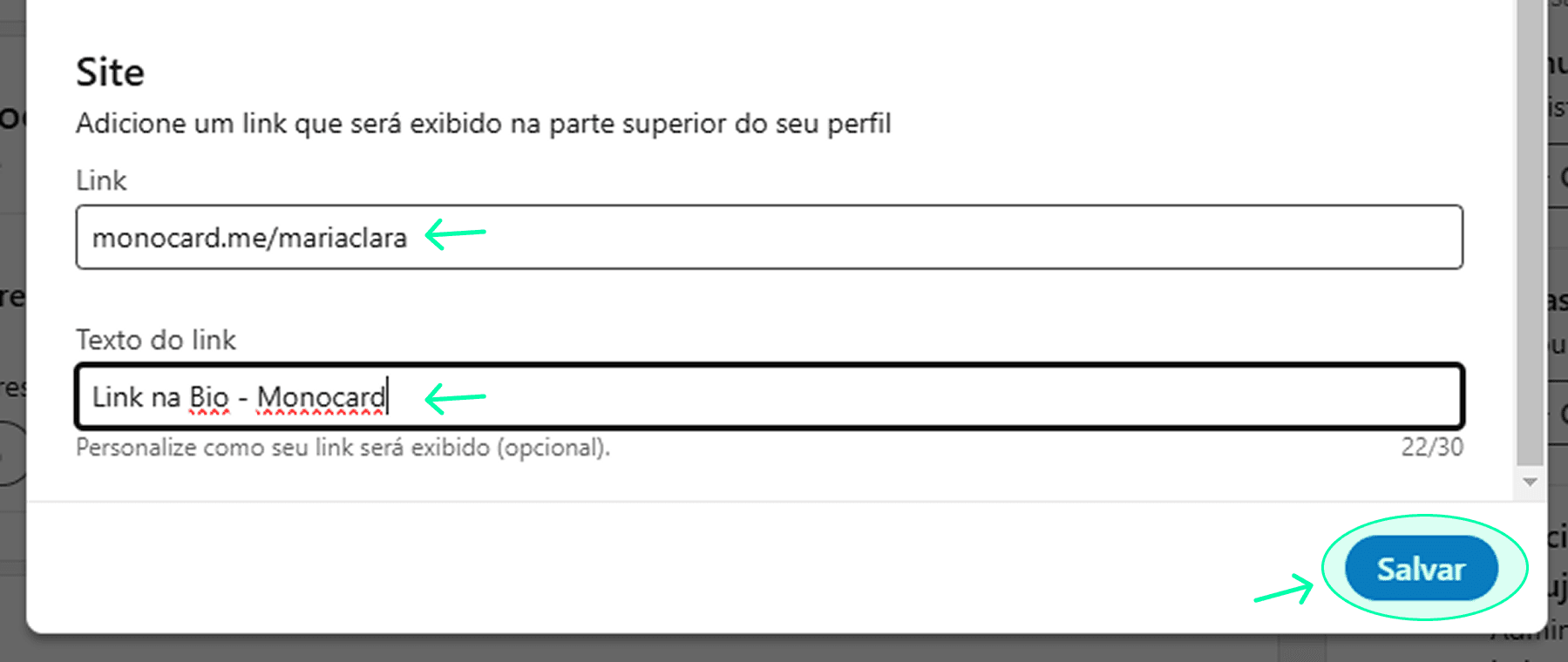
4. Done, your Monocard.me is now in your LinkedIn profile bio.
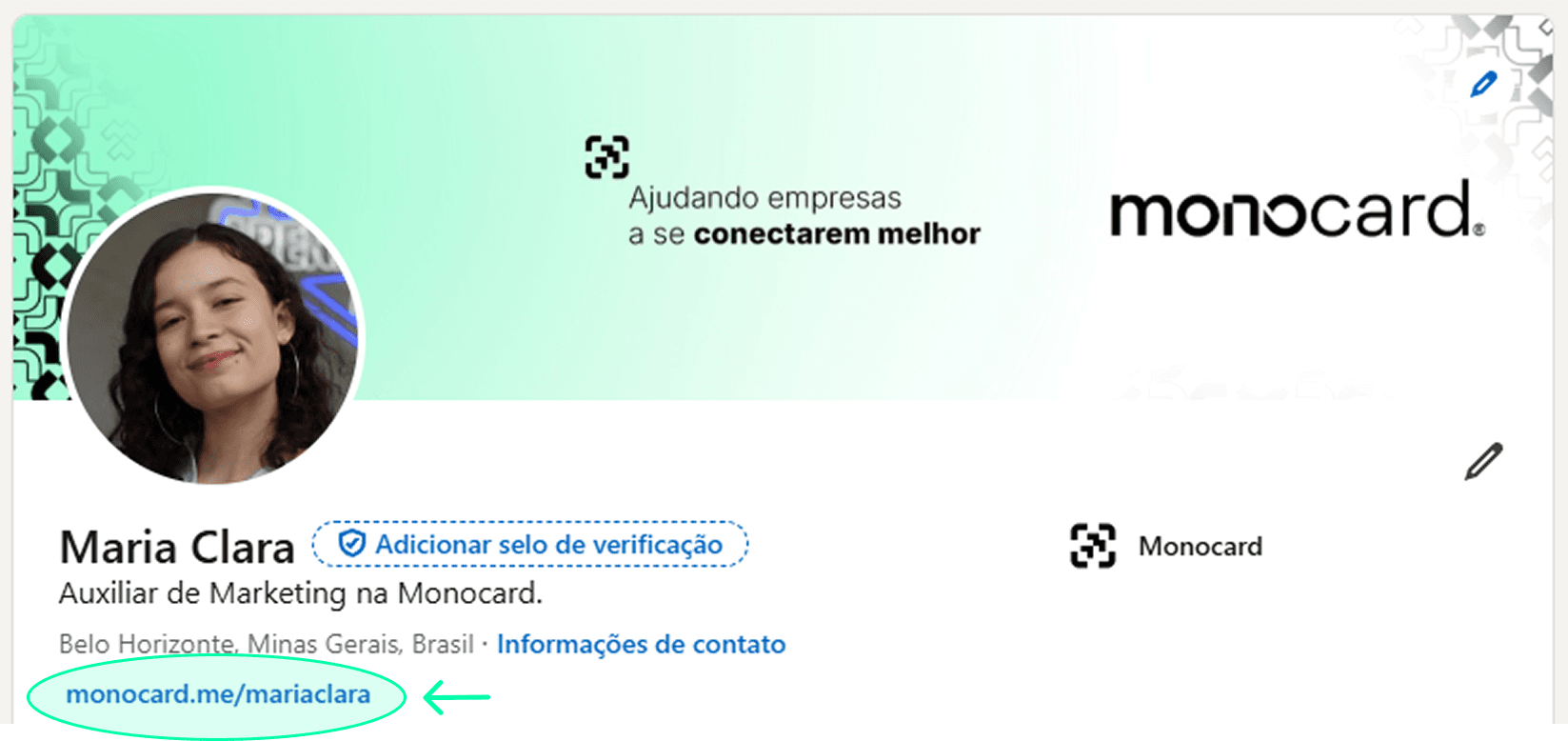
How to put a link in the Instagram bio
1. Open your Instagram profile and click on Edit profile.
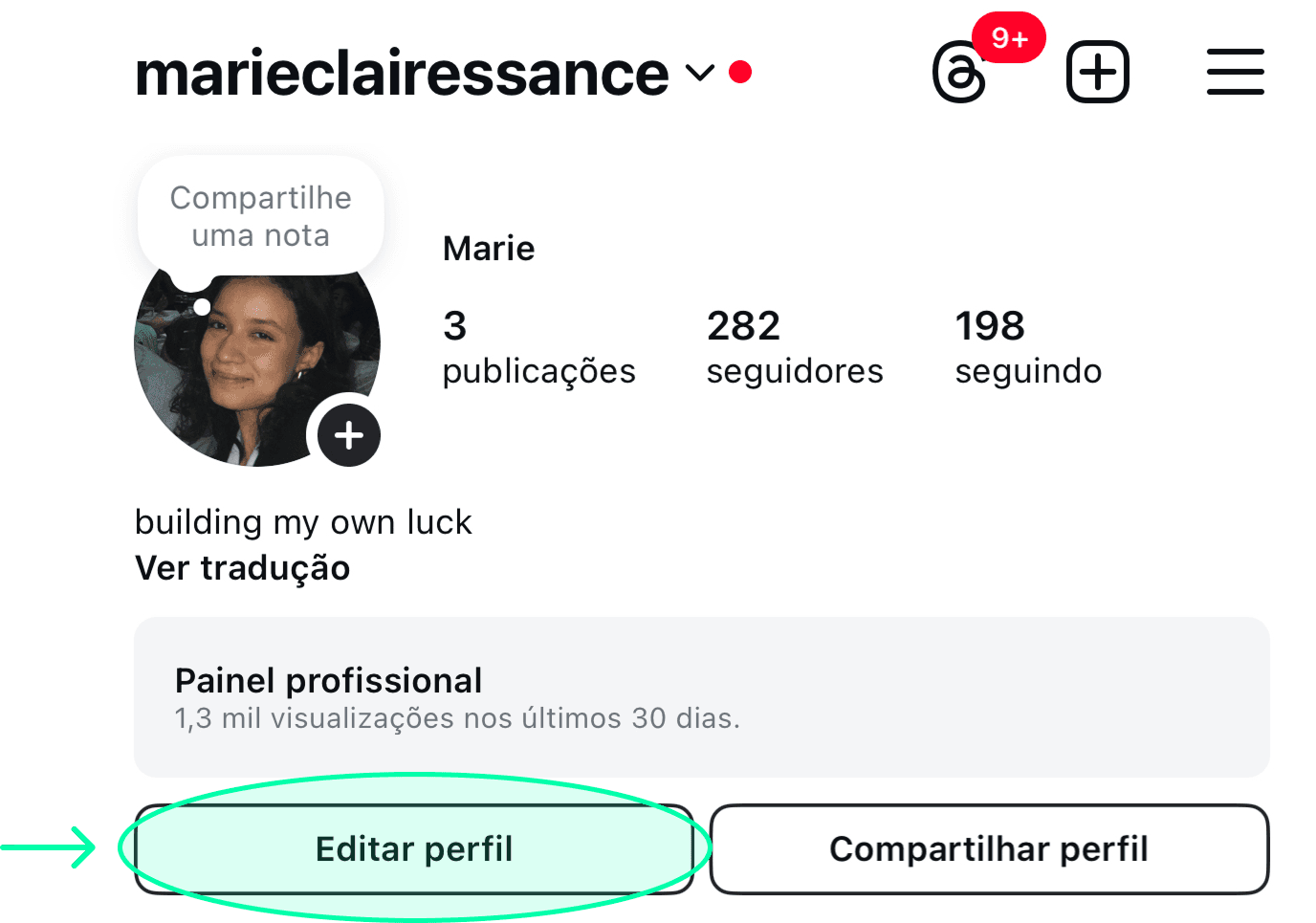
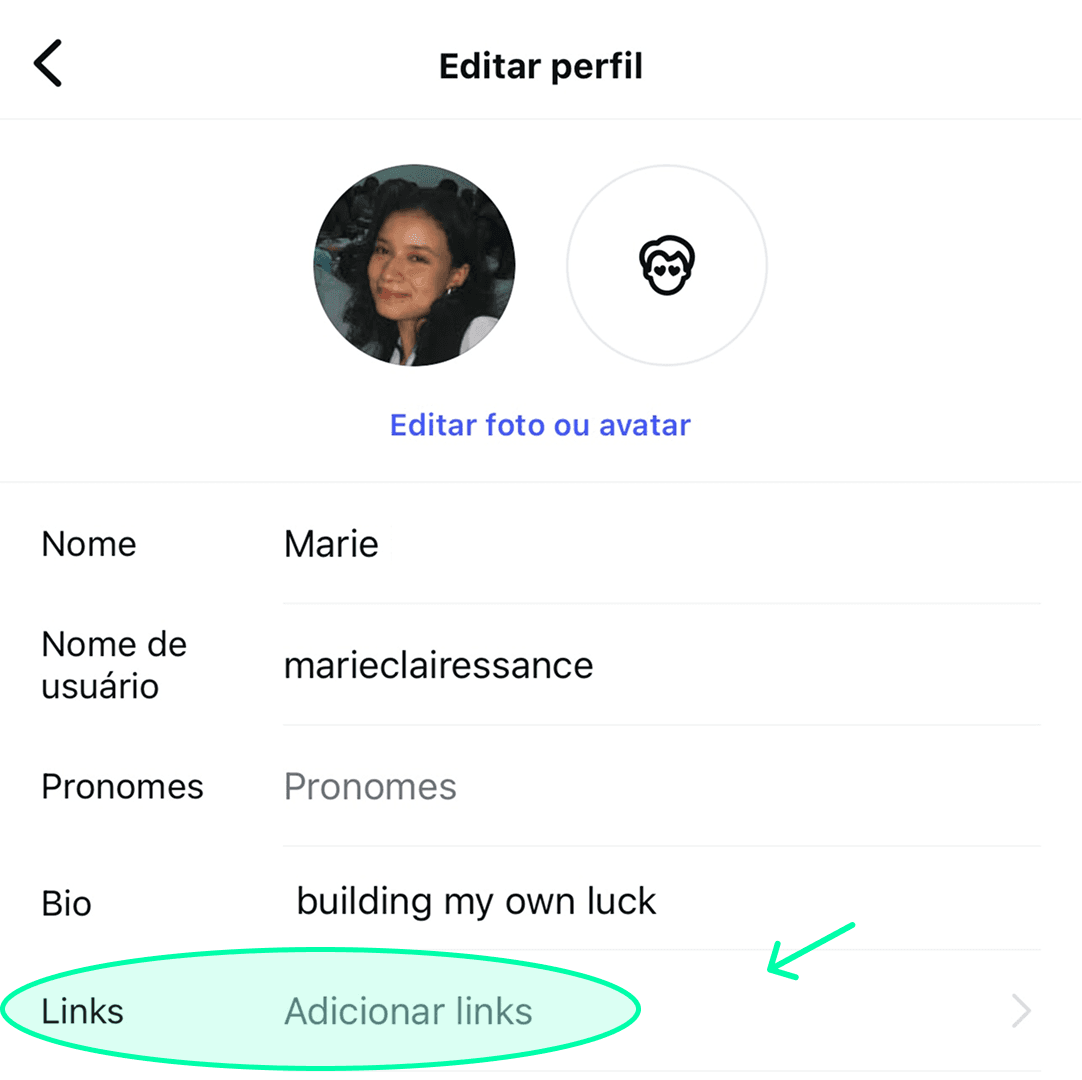
2. Go to Links > Add links.
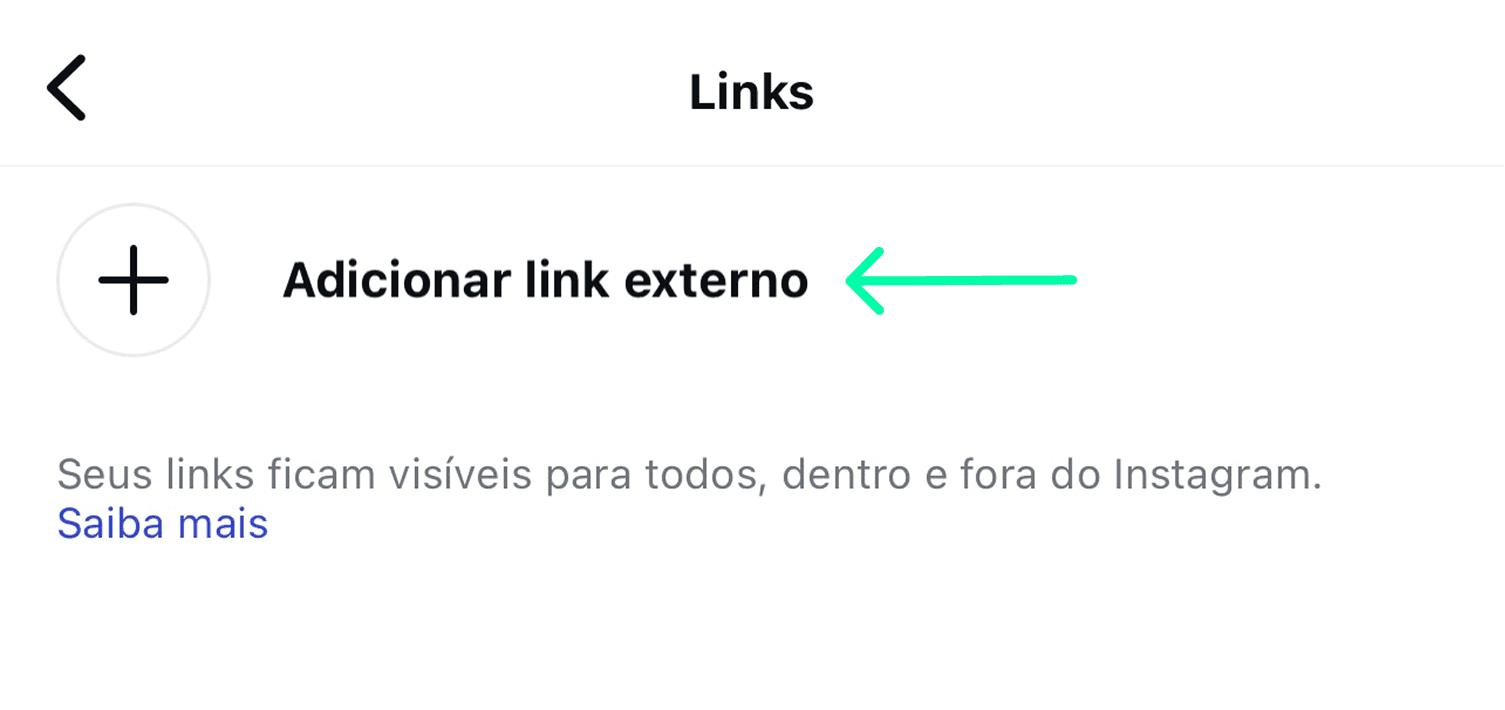
3. Click on Add external link.
4. Paste your Monocard.me link in URL and add a Title. Then, click on Done.
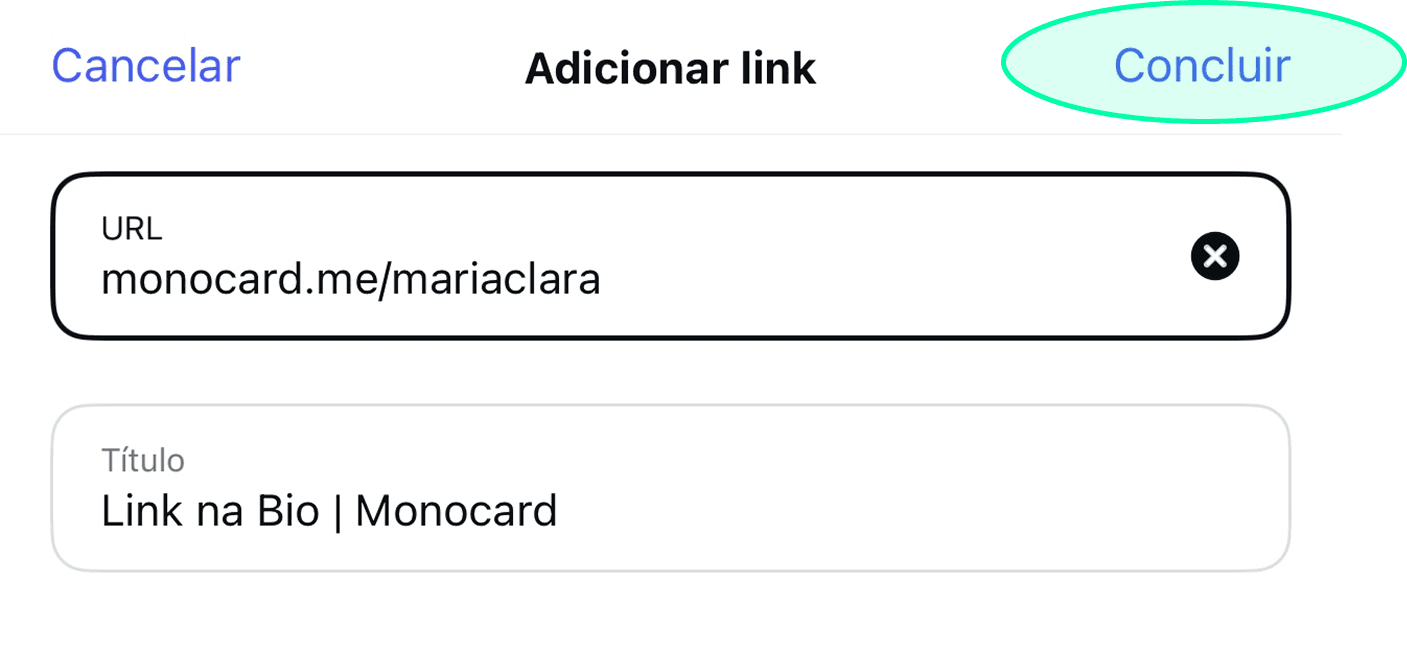 5. Done! Your Monocard.me link is now in the bio!
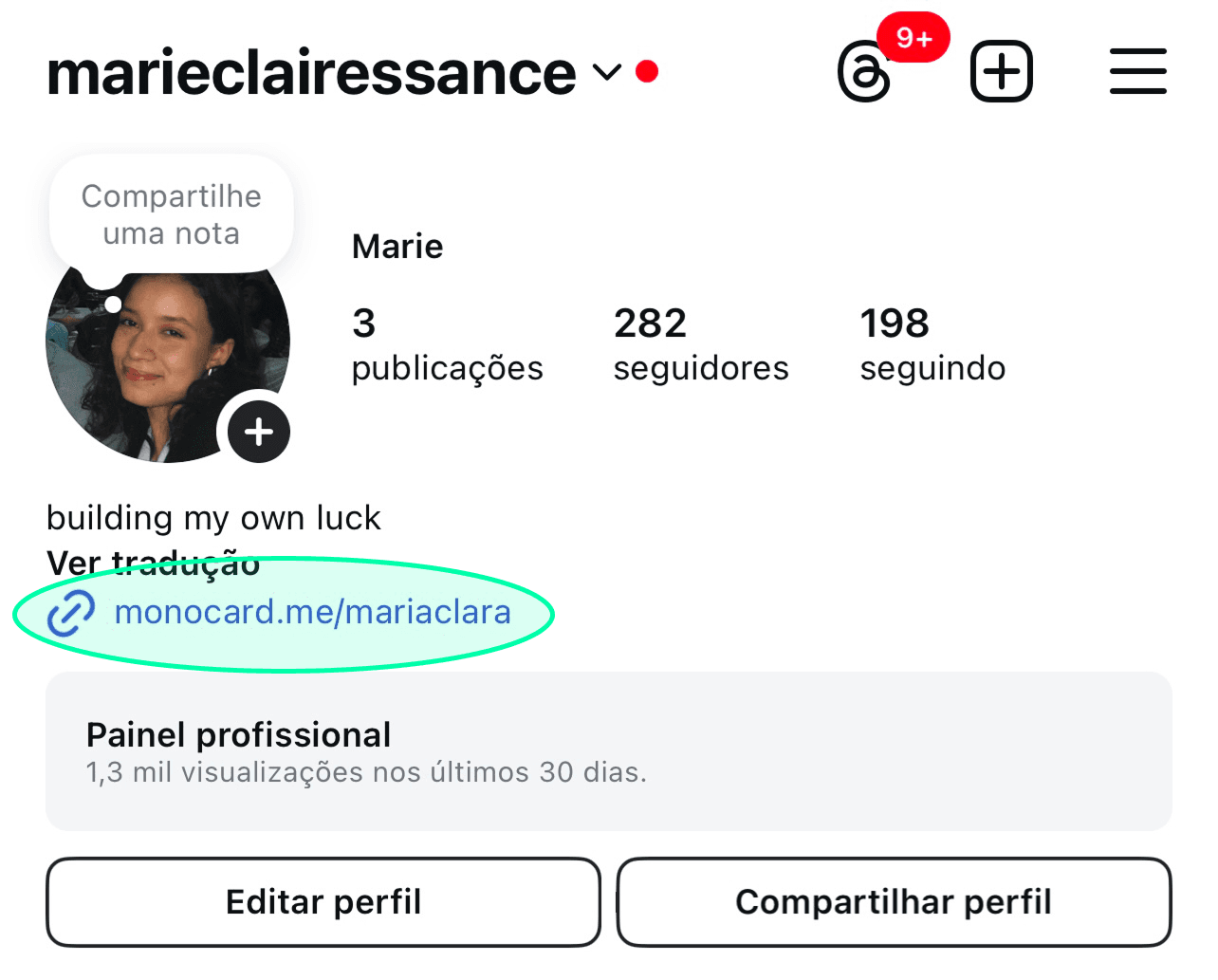
How to put a link in the X (Twitter) profile
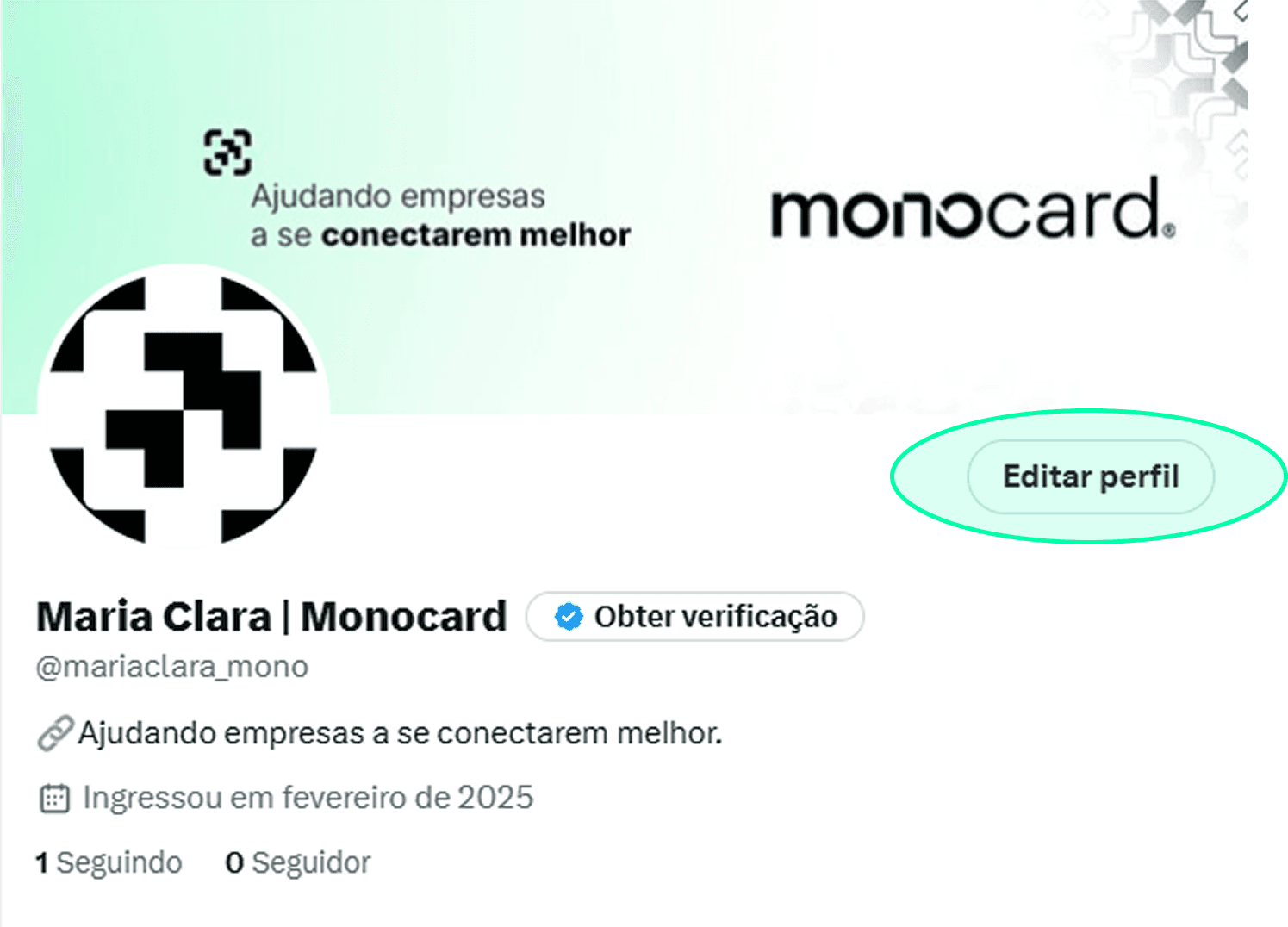
1. Open your profile on X and click on Edit profile.
2. Scroll down and find Website.
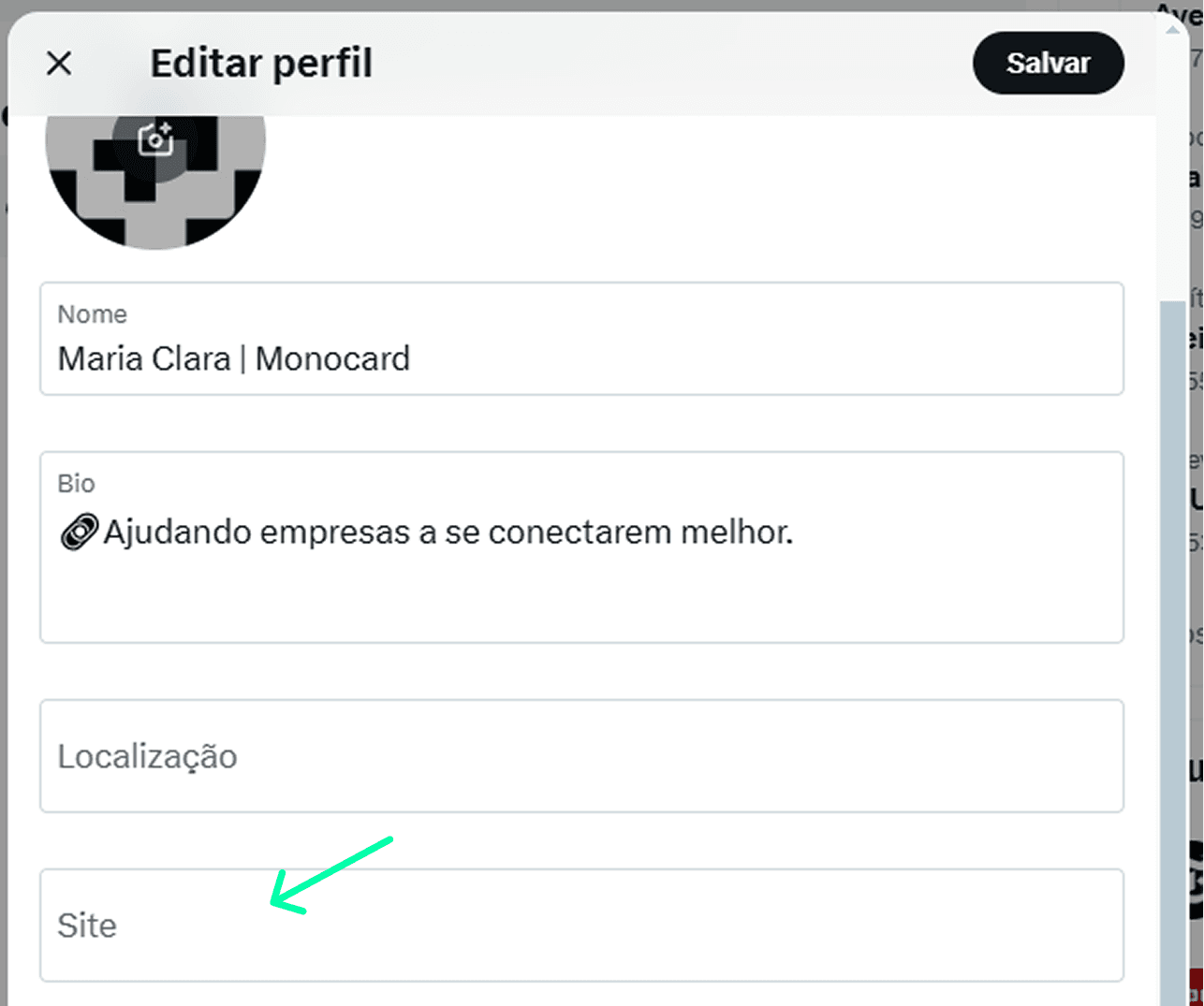
3. Paste your Monocard.me link and press Save.
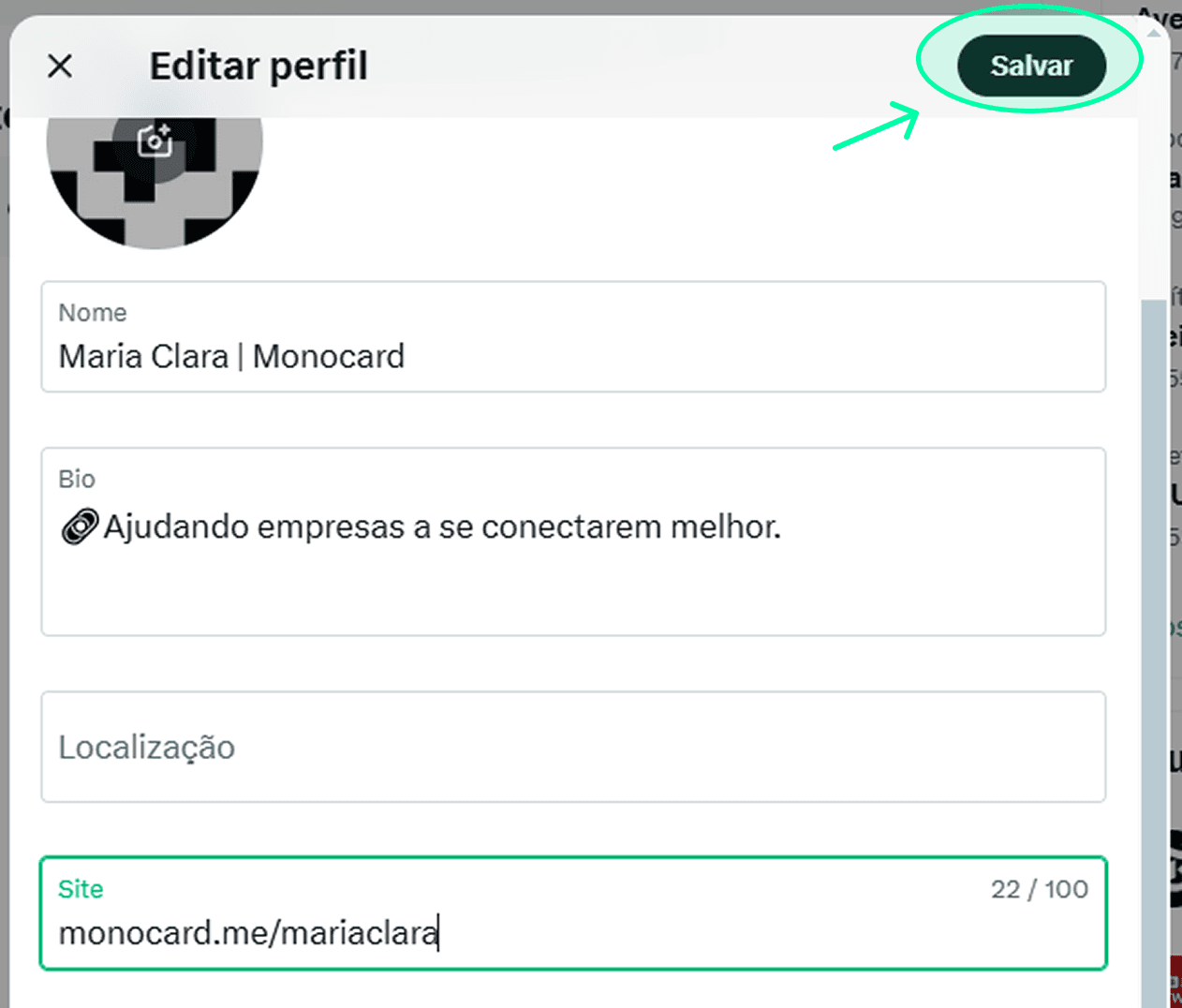
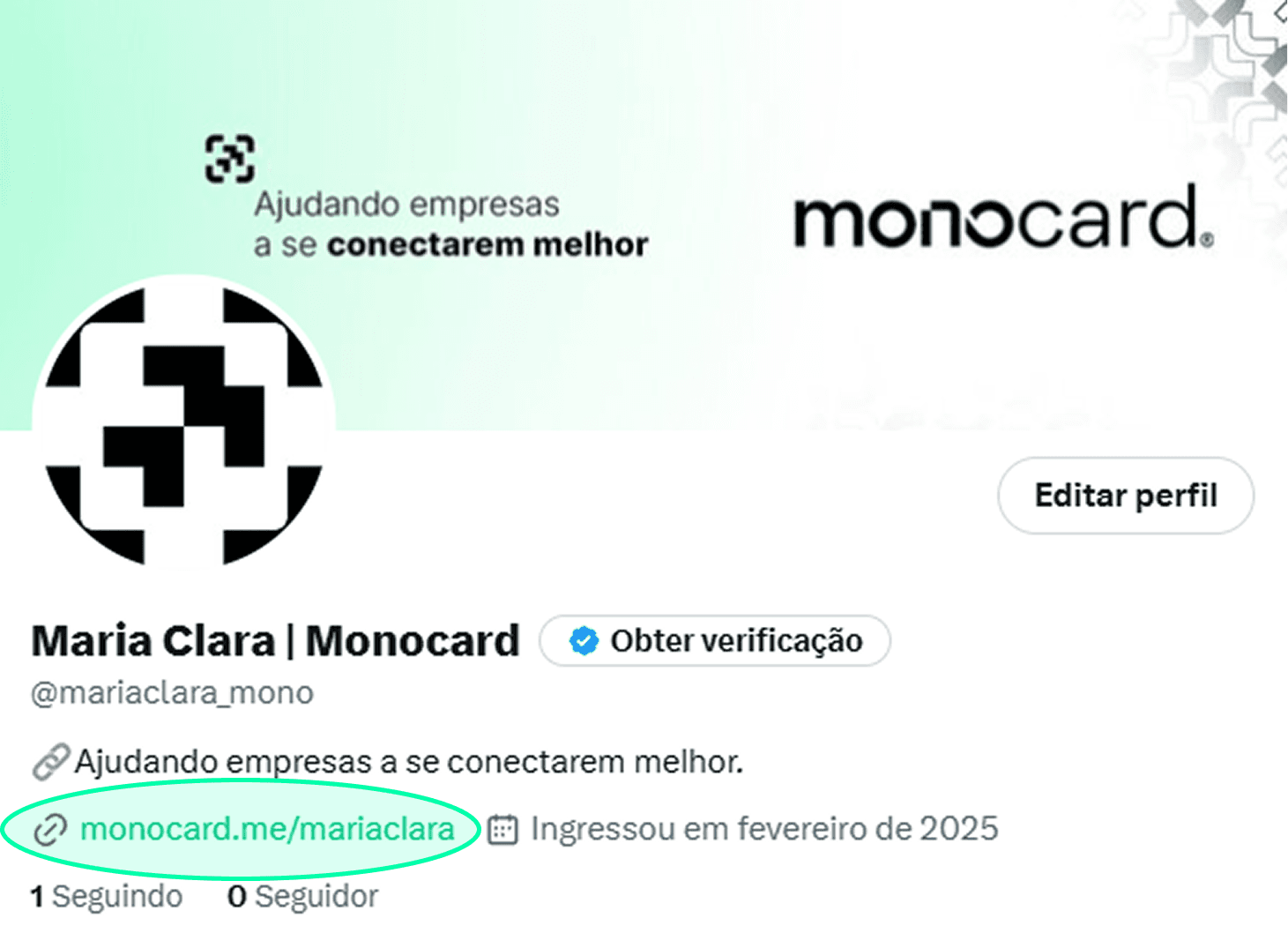
4. All done! Your X profile is displaying your Monocard.me link in the bio.
How to put a link in the Facebook bio
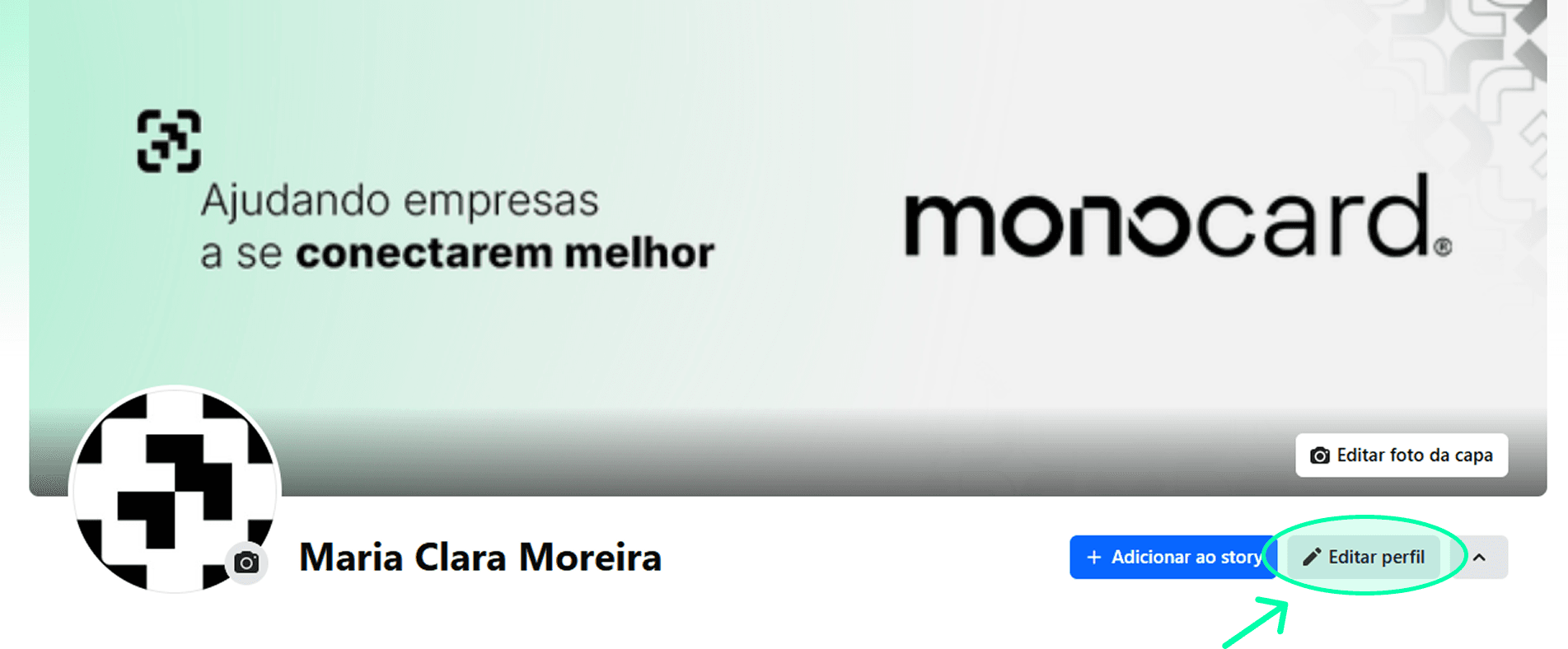
1. Log into your Facebook page and click on Edit profile.
2. Scroll to find the Bio > Edit section.
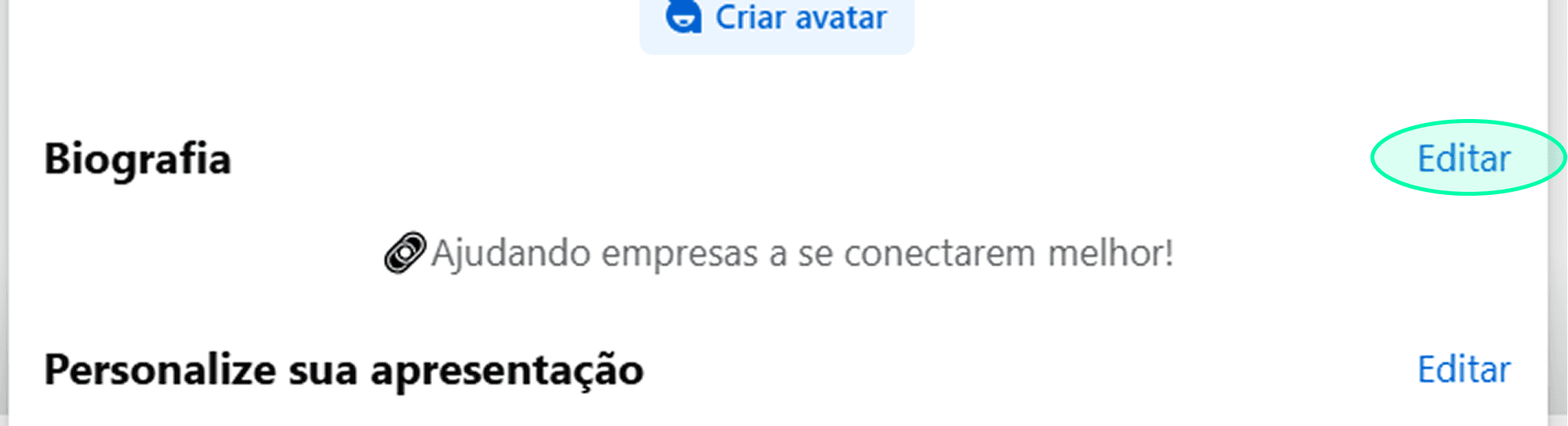
3. Paste your Monocard.me link and click on Save.
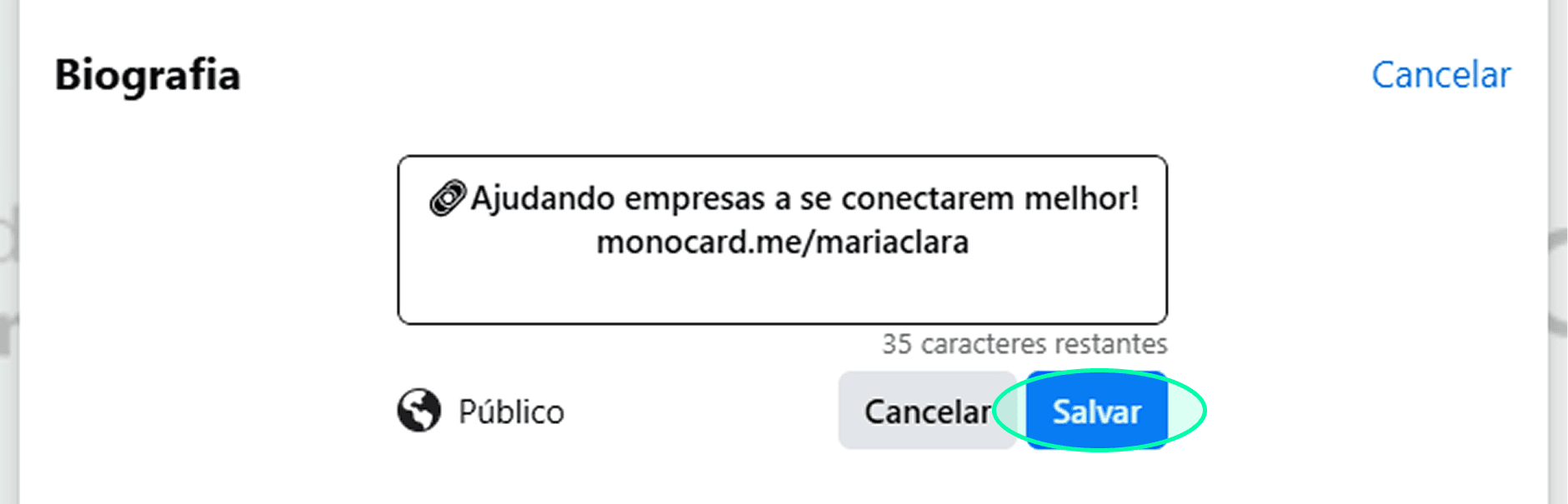
4. Now your link is in the bio of your Facebook page!
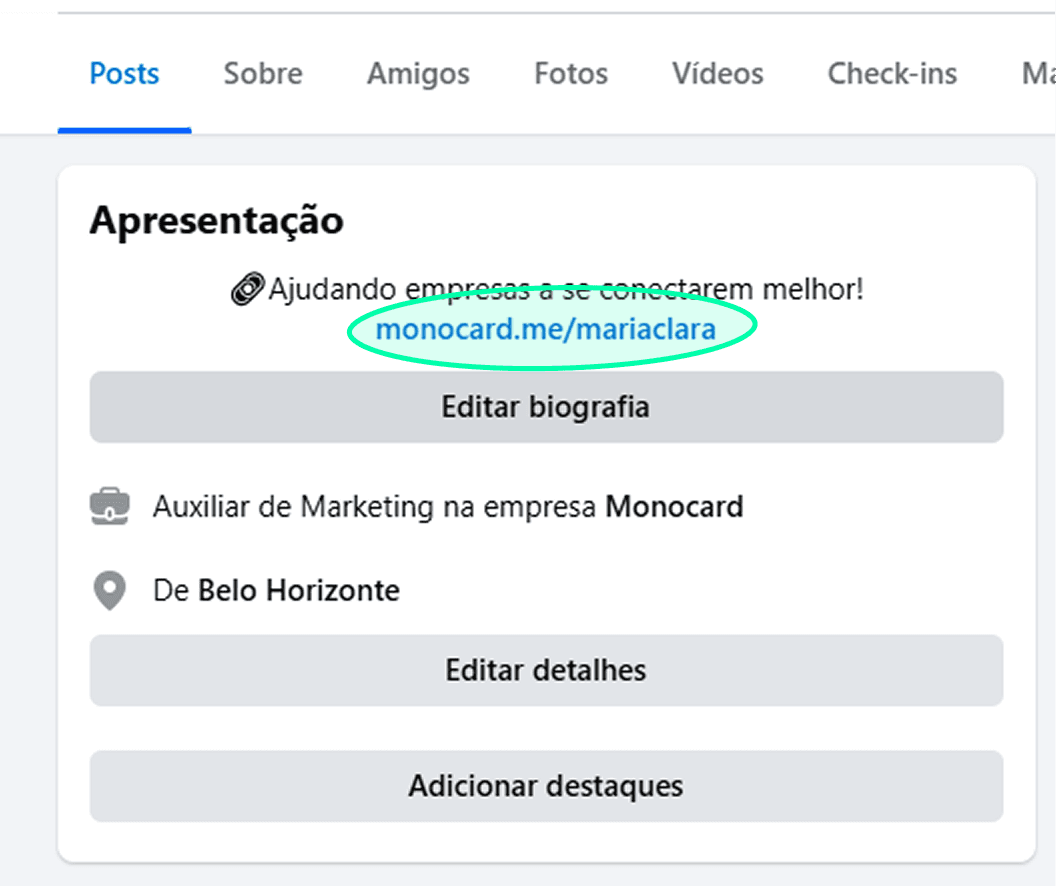
Make sure your link is public! Follow the instructions:
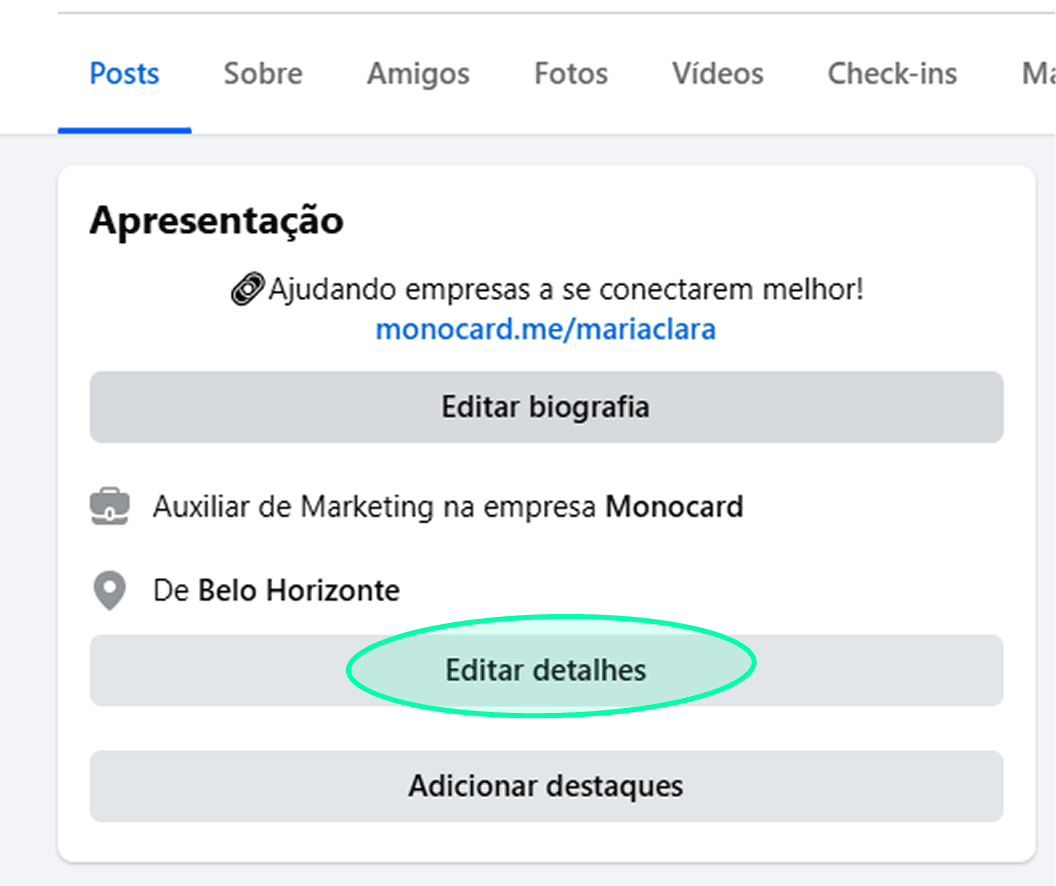
5. In Introduction, click on Edit details.
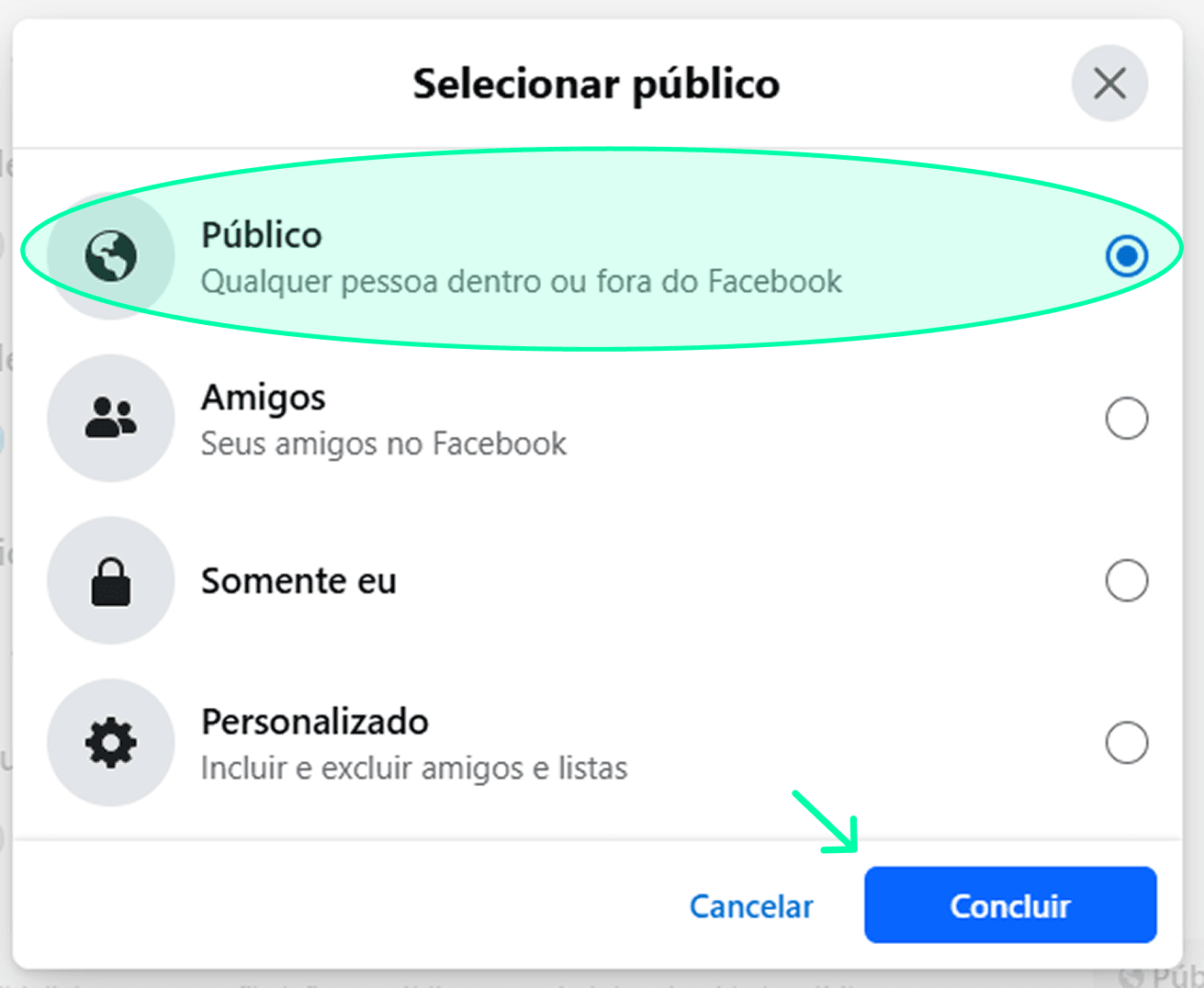
6. Go to Websites and click to change the audience.
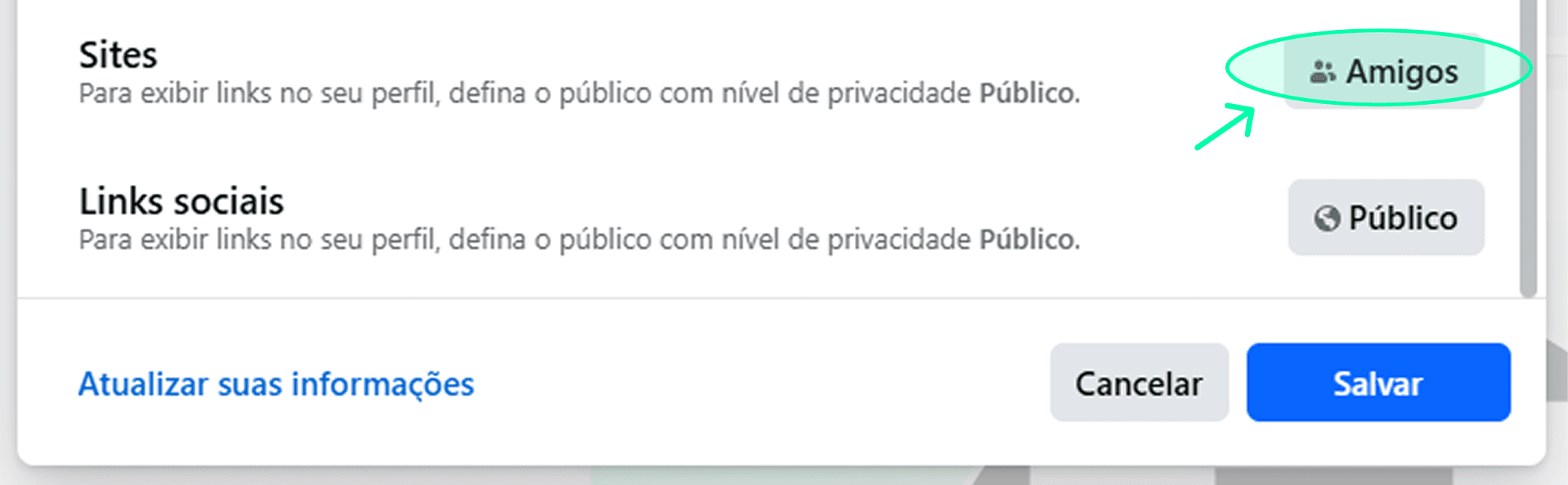
7. Set it to Public and click on Done.
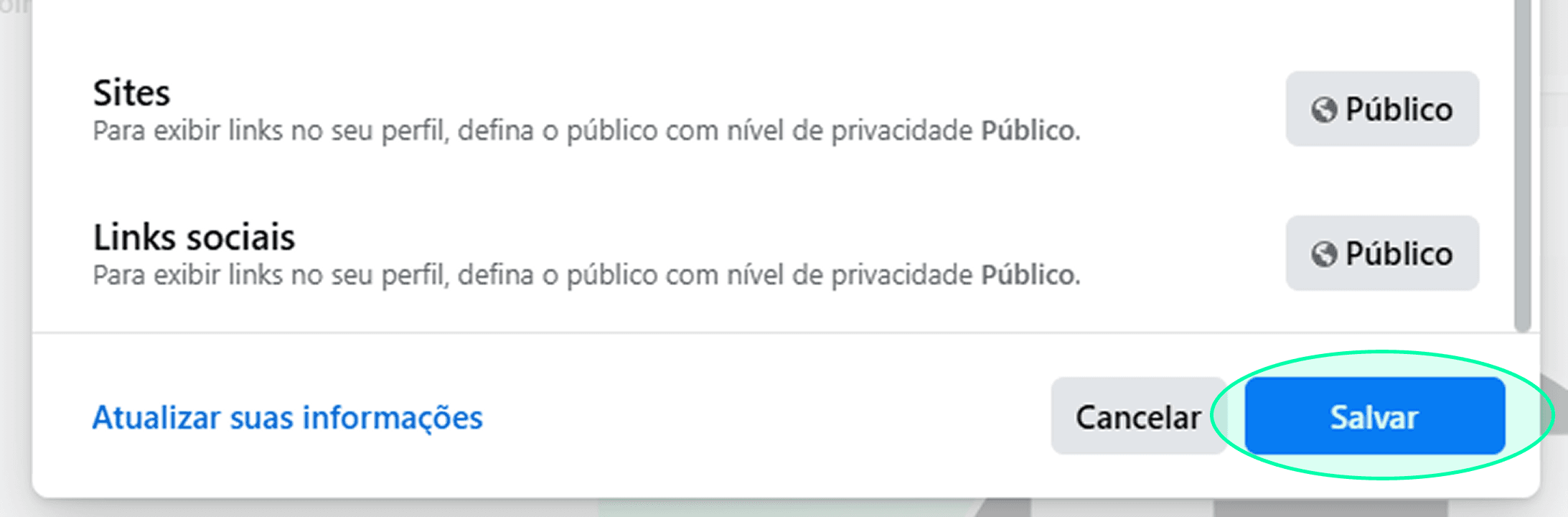
8. Click on Save.
Done! Now all your social networks are a point of professional connections with the Monocard.me Bio Link!
Enjoy all the benefits of being Monocard!
Still have questions or need help with a more specific issue? Contact our support in the Sidebar Menu of your Monocard profile.