1. Home
  2. /
  3. Help
  4. /
  5. Generating a QR code for your virtual card
Sharing

Generating a QR code for your virtual card

How to generate a QR code to share your online profile

Updated on: February 19, 2025

  1. Access your Monocard account at https://monocard.me/login
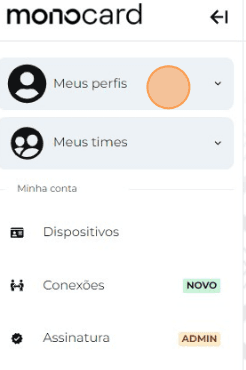
  2. Click on "My profiles";
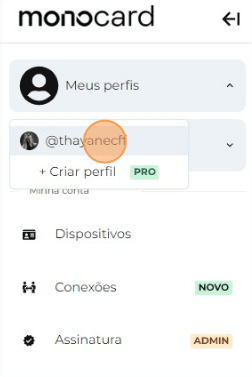
  3. Click on your Profile;
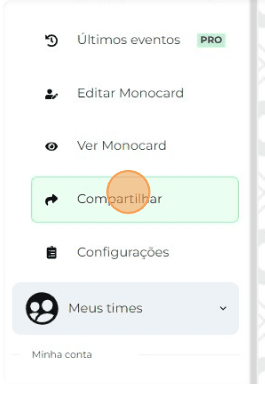
  4. On the left side of your editing panel is the Share button;
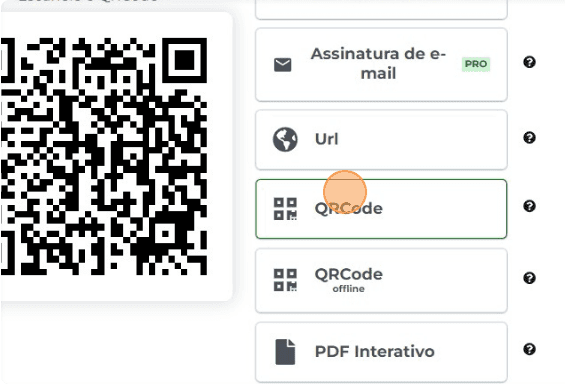
  1. Click on the QR code icon on the banner and the file will be automatically downloaded to your phone;
Information that may also help you:

Understand how to use the QR code and NFC of Your Monocard

How the QR Code works

Generating an Offline QR Code

Generating a QR Code for your virtual card

Did this article not help you?

Contact our support team via the website chat, WhatsApp or by email at contato@monocard.com.br.

Related Articles

Sharing
Learn how to add your Monocard to Google/Apple Wallet
Adding a virtual business card to Apple Wallet or Google Wallet provides a modern and practical way to manage your contact information, allowing quick and easy access directly from your smartphone, without the need for physical cards.
Read article
Sharing
Link in Bio: how to share your Monocard.me
Discover how to find your Monocard.me link and how to use it on your social networks.
Read article
Sharing
Email Signature: how to create and use it?
Learn the step-by-step process to create and use your personalized email signature.
Read article

Conexões Inteligentes.

General

  • Edit Monocard
  • Blog
  • QR Code Generator
  • Privacy policy
  • Refund policy
  • LGPD
  • Commercial policy
  • Subscription policy
  • Terms of use
  • Acceptable Use Policy
  • Trust Center
  • Report abuse

Business

  • +55 31 97254-9295
  • comercial@monocard.com.br
  • For companies
  • Resale
  • Payment methods

Contacts

  • Help
  • +55 31 99500-5105
  • contato@monocard.com.br

© Copyright 2026. All rights reserved.