It’s important to clearly state your role and the services you provide so your clients know what to expect from you. The bio is a great space to summarize your profile, area of expertise, and experience!
Here, we’ll teach you how to customize it. Check out the step-by-step images below:
-
Access the 👉 Profile Editing 👈 panel;
-
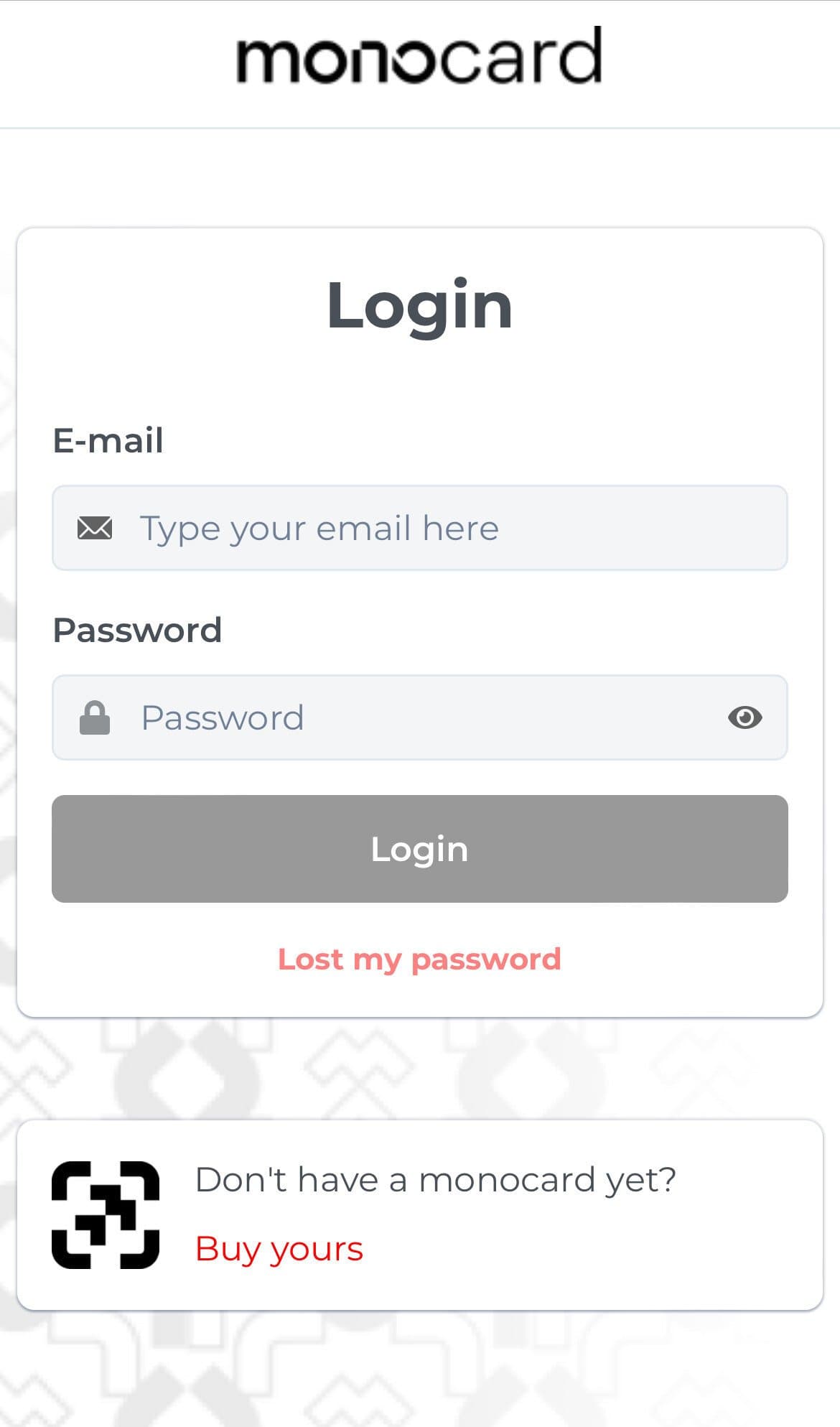
Enter your registered email and password from the activation and click on "Login";
-
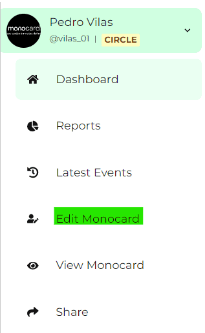
There, on the left side of your editing panel, is the Edit Monocard button;
-
Click on the Biography field and enter the desired description;
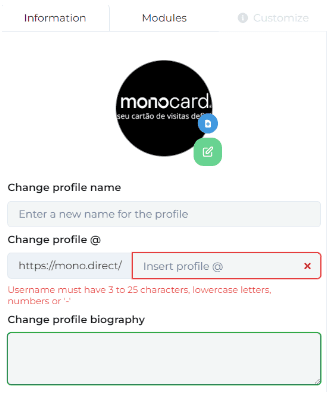
Attention: you must enter a biography with a maximum of 60 characters and it is not possible to insert emojis!
5 . Click “Save changes” at the bottom of the page to save the profile.
Information that can also help you:
How to change the photo on the online Monocard profile,
- Access the 👉 Profile Editing 👈 panel;
- Enter your registered email and password from the activation and click on "Login";
- There, on the left side of your editing panel, is the Edit Monocard button;
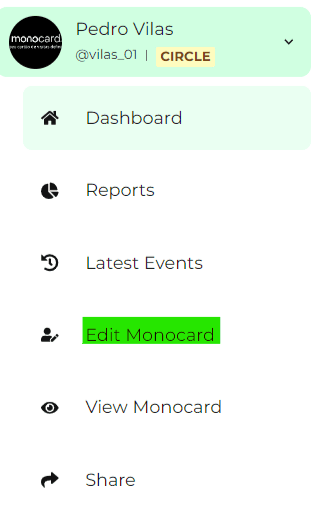
- Click on the profile picture (Add image) and select the photo you want from your image gallery.
- Wait for the image to load, then click “save changes” at the bottom of the page to register the changes made to your profile.
How to edit your profile color
-
Access the 👉 Profile Editing 👈 panel;.
-
Enter your registered email and password from the activation and click on "Login";
-
-
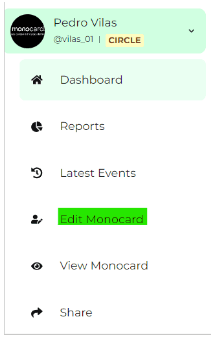
There, on the left side of your editing panel, is the Edit Monocard button;
-
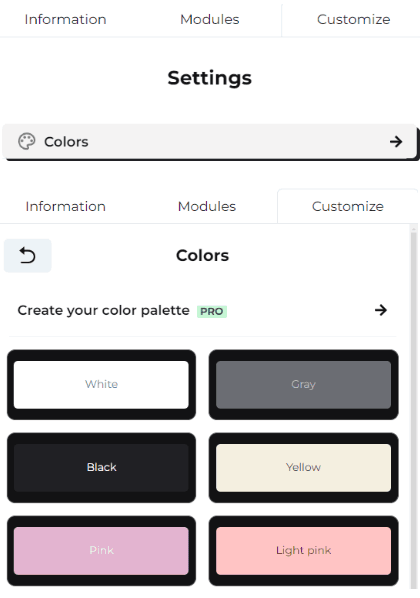
Inside the Customize tab, choose the desired color.
-
Click “Save changes” at the bottom of the page to save the profile.