See the step-by-step in images!
-
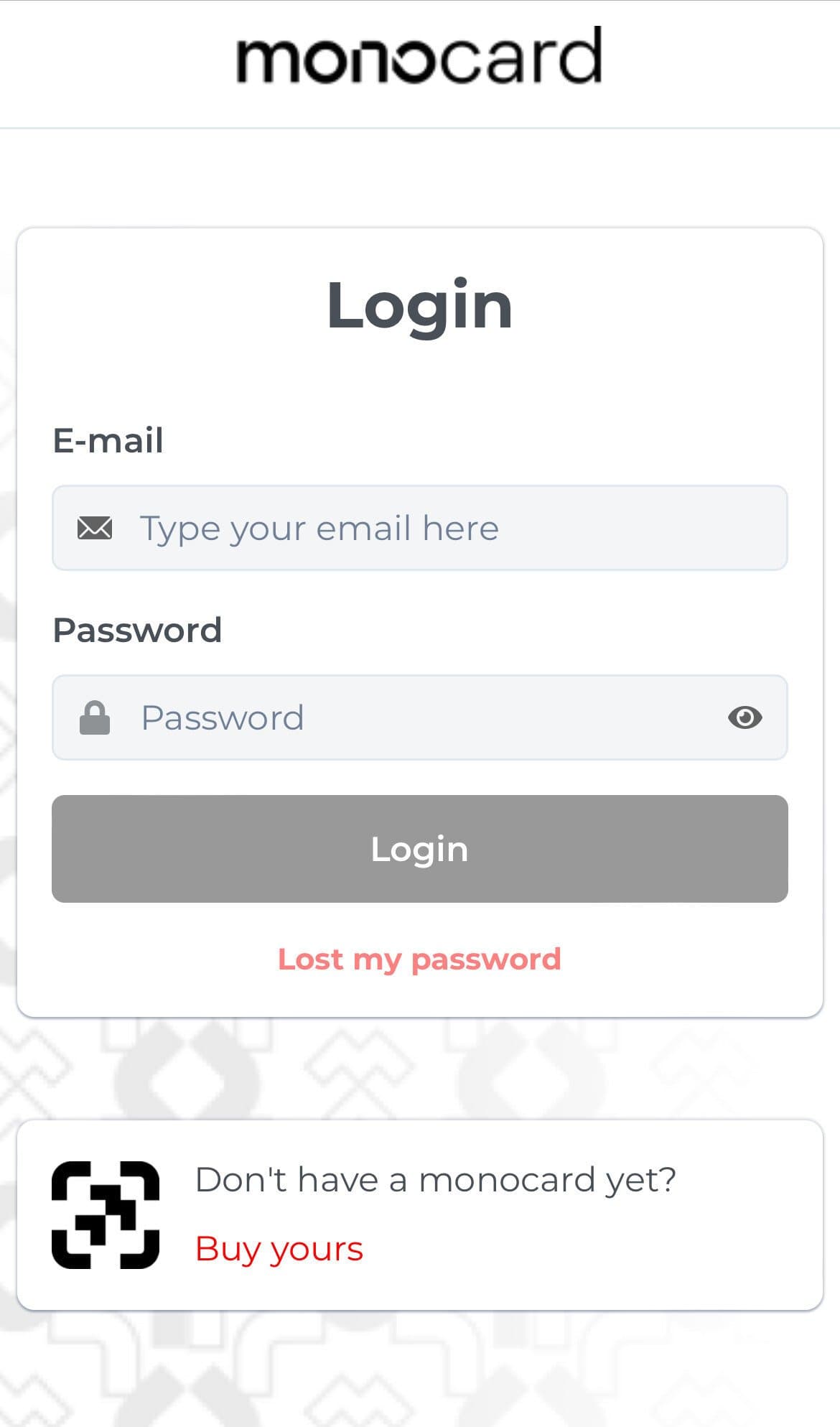
Access the 👉 Profile Editing 👈 panel; Enter your registered email and password from the activation and click on "Login";
-
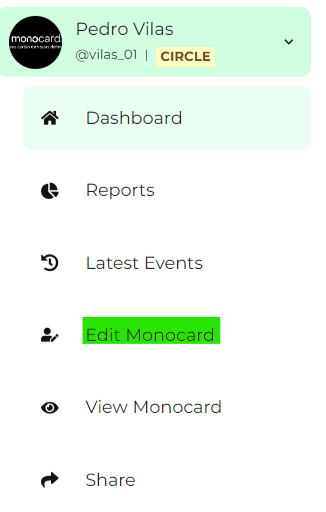
. There, on the left side of your editing panel, is the Edit Monocard button;
-
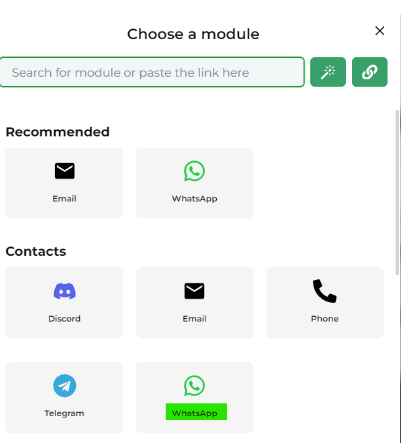
Select the WhatsApp module and enter your number with the area code.
-
Click ✅ to confirm your action.
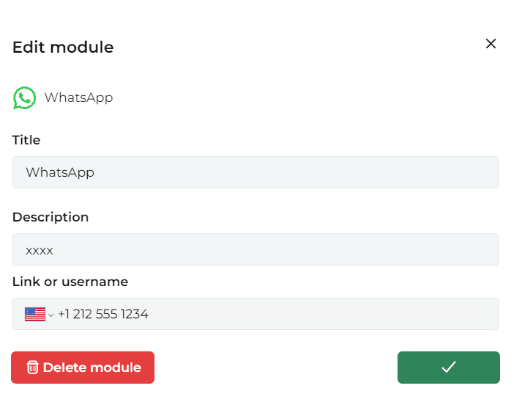
Note: For international WhatsApp, simply select the module and add your number with the country code
Don't forget to click “save changes”, okay?
Information that might also help you:
How to add new modules
Mobile Version
- Access the Profile Editing panel.
- Enter your registered email and password from the activation.
- On the left side of your editing panel, there is an "Edit Monocard" button.
- Scroll down to the bottom of the page.
- Select the module you want to add.
- Complete the module information.
- Click on the "" to complete.
- Click “Save” at the bottom of the page to save the profile.
PC Version
- Access the Profile Editing panel.
- Enter your registered email and password;
- On the left side of your editing panel, there is an "Edit Monocard" button.
- Select the desired module from the sidebar;
- Fill in the module information;
- Click on the "" to complete;
- Click "Save" at the bottom of the sidebar to save the profile;
Edit the information of your saved modules
- Click on the “✎” next to the item you want to edit in your profile;
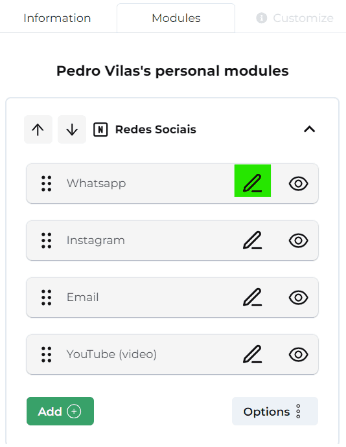
- Click on the trash can icon;
- Click "Save" at the bottom of the page to save the profile.
Change the order of items:
- Click and drag the hamburger icon (three horizontal lines) of the item you want to reorder.
- Click “Save” at the bottom of the page to save the profile.