-
Access your YouTube channel, click on the option About, and copy your address;
-
Access the 👉 Profile Editing 👈 panel;
-
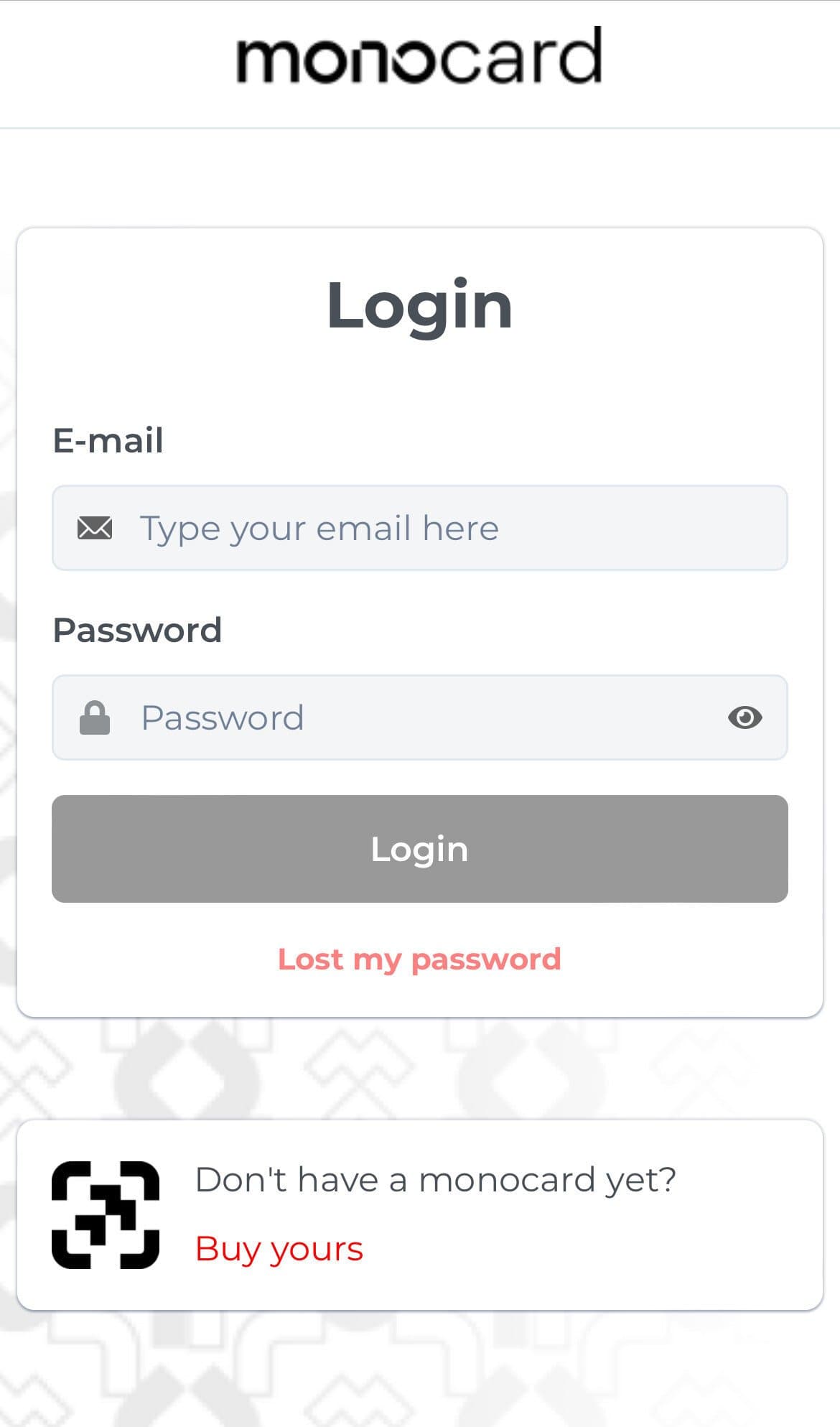
Enter your registered email and password from the activation and click on "Login";
-
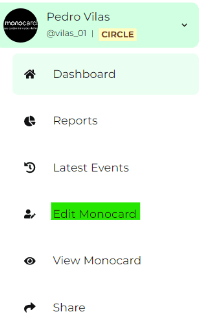
There, on the left side of your editing panel, is the Edit Monocard button;
-
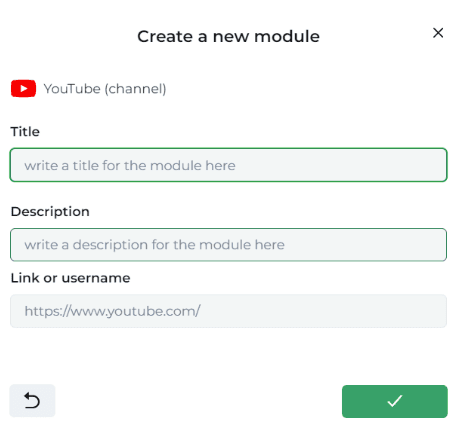
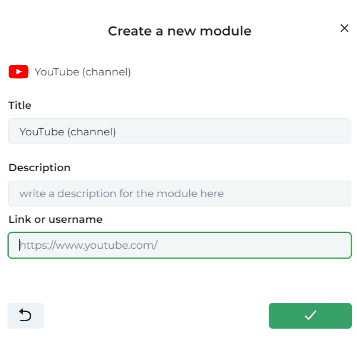
Select the YouTube Channel module. Then, in the first field (indicated in the image below), you should enter a title for the link;
-
In the second field, you should enter a brief description for the link, as shown in the image.
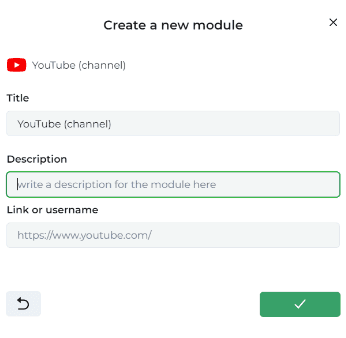
Tip: This is a great space for you to insert a reminder for your contacts! For example: Don't forget to subscribe to the channel, activate notifications, like and comment, among others.
-
Finally, in the third field, you should enter the link to your YouTube channel. When you have finished filling in your details, click the arrow to complete the action!
-
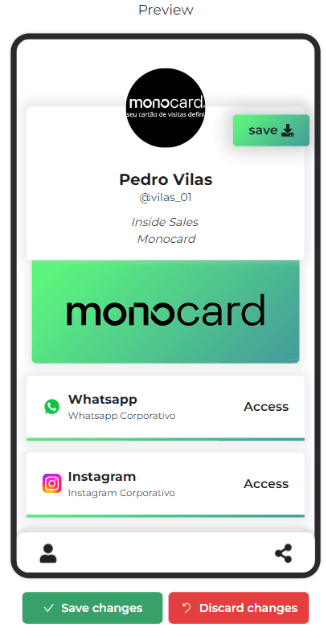
Don't forget to click "Save changes" icon at the bottom right corner of the page to save the changes to your profile.
Information that might also help you:
What data can I include in my Monocard online profile?
You can add various features to your Monocard online profile, such as links, email, phone number, social media profiles, address, and more.
Please find below the table with our available modules:
Link
Telefone
Soundcloud
Whatsapp Internacional
Telefone Internacional
Twitch
Tiktok
YouTube
Discord
Spotify
Picpay
Vimeo
Mixcloud
Mapa
App GooglePlay
Link Dinâmico
Sympla
Telegram
Endereço (Google Maps)
PIX
Texto
SOS
It is important to remember that in our Help Center, you can access tutorials that teach you how to register email, phone, WhatsApp, Instagram, LinkedIn, Facebook, and more.