Discover the Playlist Link on Mobile
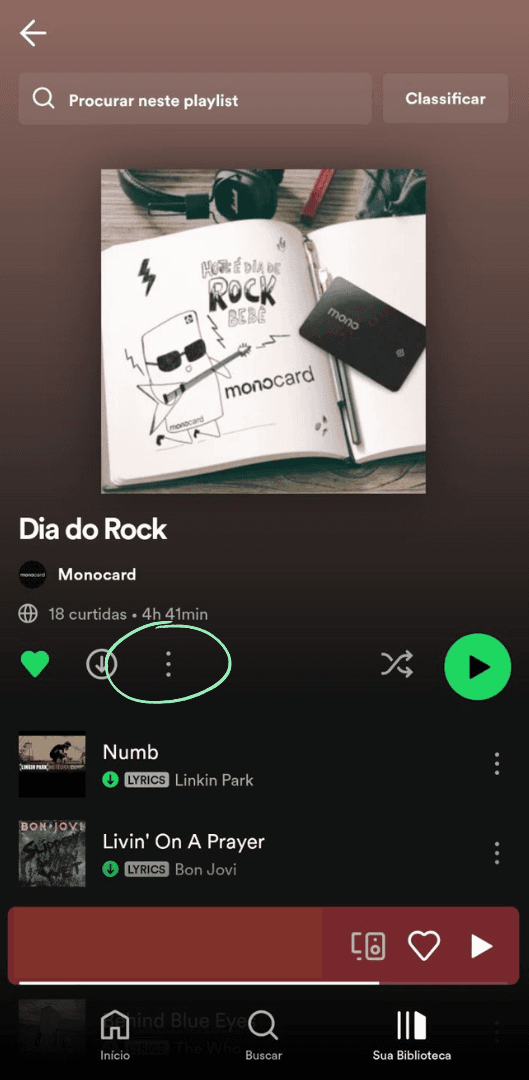
1. Open the Spotify app and select the playlist you want to add to your Monocard profile. Then, click on the three dots, as shown in the image below:
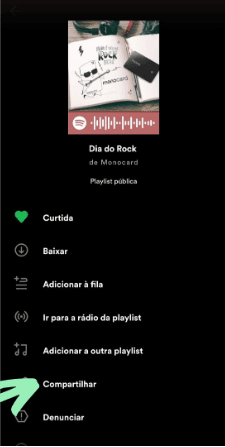
2. Now click on Share;
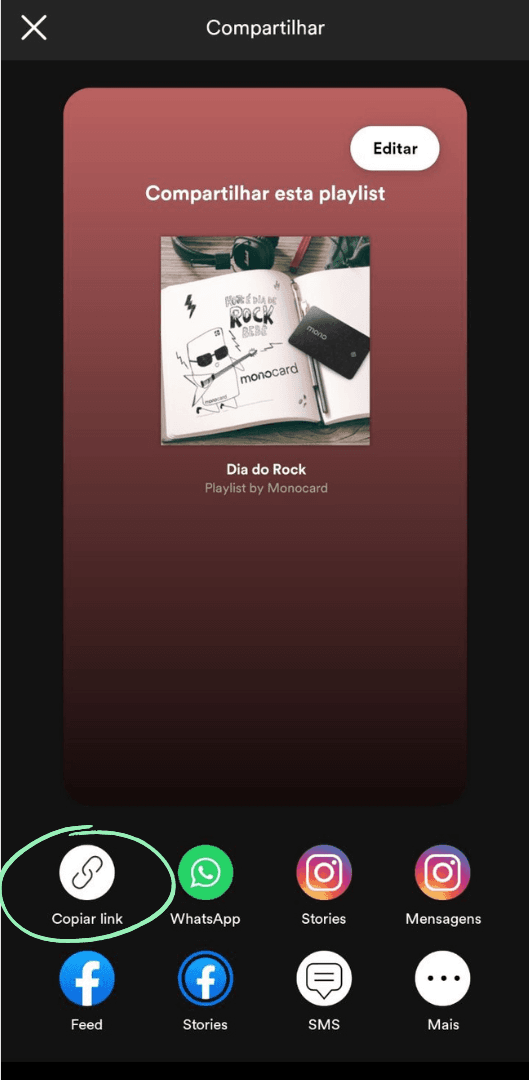
3. Select the option Copy Link;
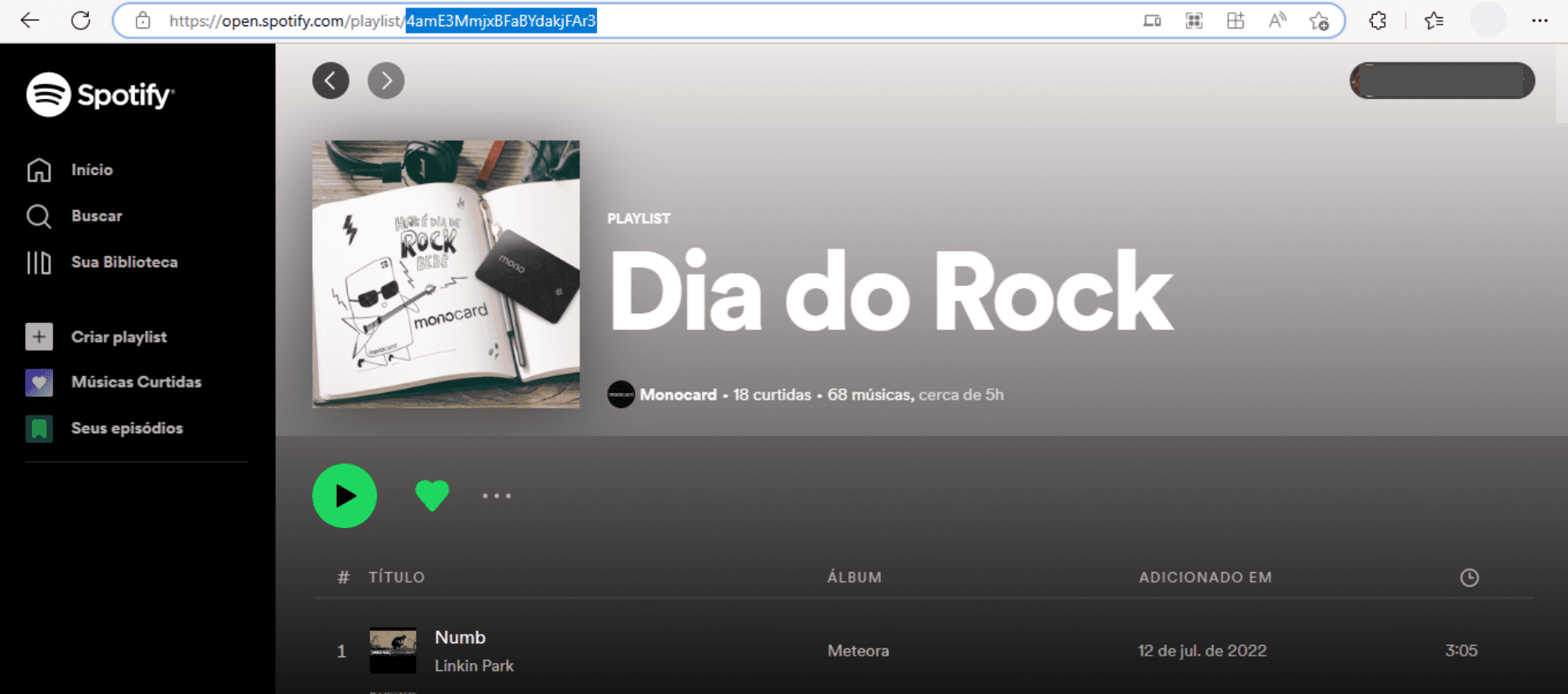
4. Paste the link into a notepad and select only the part that comes after the /playlist/ code, as instructed below:

Discover the Playlist Link on Desktop
1. Access the Spotify player on your computer and open the playlist you want to add to your Monocard profile. Then, just select the text that comes after the /playlist/ code, as indicated in the image below:
Add the Playlist to the Monocard Profile
1. Access 👉 Monocard Platform 👈;
2. Fill in your registered email and password from activation and click enter;
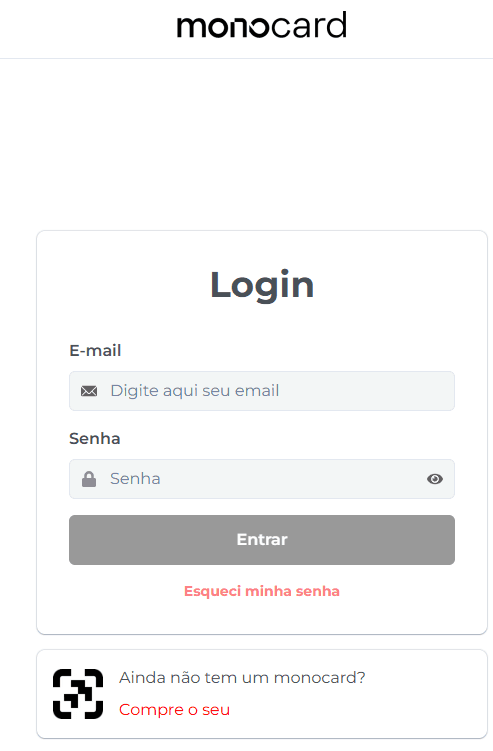
-
Click on "My Profiles" and access yours;
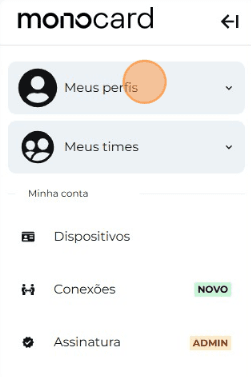
-
On the left side of your editing panel, click on "Edit Monocard";
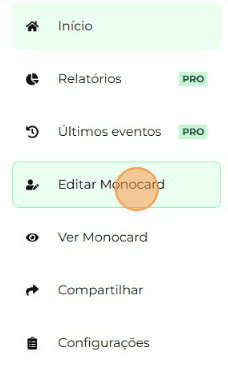
5. Click on "Modules"
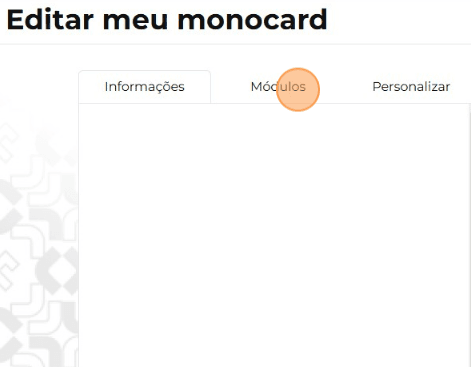
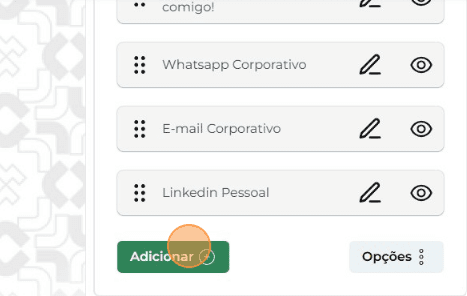
6. Click on "Add";
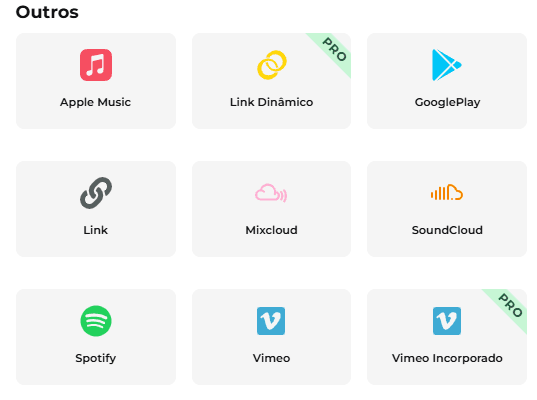
7. Choose the "Spotify" module;
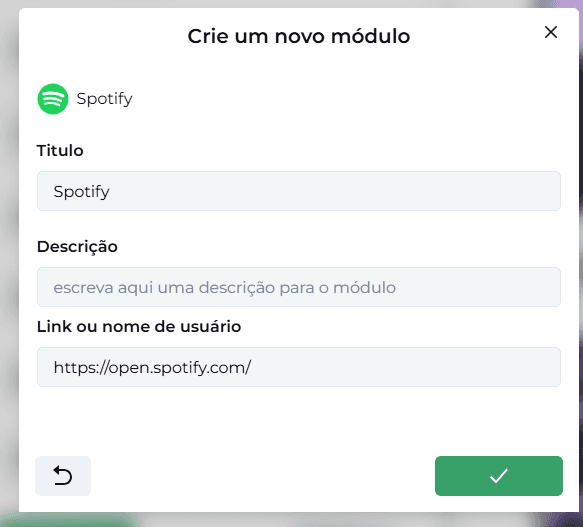
8. Fill in the requested information and click the green arrow;
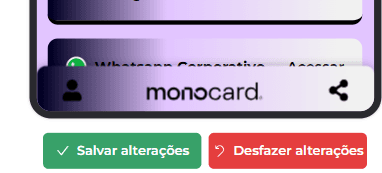
9. Don't forget to save the changes after finishing editing your profile!
Information that can also help you:
Learn how to edit your Monocard
It's important to remember that in our Help Center you can access tutorials that teach you how to register email, phone, WhatsApp, Instagram, LinkedIn, Facebook, among others.
Just access 👉**our page**👈 and browse through the content we created with great care for you!
Did this article not help you?
Contact our support team via the website chat, WhatsApp or by email at contato@monocard.com.br.